
Using the Event Log
Overview
The Event Log can be found in the 'Events' tab under Subscribers in the left hand nav. It displays per -subscriber event data for the past 30 days. It supports the following events:
- Sent - Echobox has tried to send an email to the recipient address
- Delivered - Echobox has successfully delivered an email to the recipient address
- Bounced - The email was not successfully delivered to the recipient address
- Complaint - The email was marked as spam or junk
- Opened - The recipient has opened the email
- Clicked - The recipient has clicked on a link in the email
- Exceeded Soft Bounce Limit - The email soft-bounced repeatedly
- Forgotten - A right-to-be-forgotten request was made
- Subscribed - A new user subscribed
- Unsubscribed - A user unsubscribed
- Removed - The subscriber was manually removed from the platform
Dimensions
Events will have the following dimensions:
- Type
- Edition - a newsletter, marketing or journey email
- Subscriber confirmation - a confirmation or verification email sent after subscription
- Transactional - an email sent via the transactional API
- Time - the timestamp for the event (in the recipient's time zone)
- Event - the type of the event
- Recipient - the email address of the recipient
- Campaign/journey - the campaign or journey name
- Segments - the segments assigned to the email the event is associated with
- Subject line - the subject line of the email
- Sender - the sending address used for the email
- Tags - the tags associated with the email
For events that are exported from the frontend or via API the additional dimension below are included:
- Property URN - the unique identifier for the property
- Campaign URN - the unique identifier for the campaign
- Edition URN - the unique identifier for the edition
- Journey URN - the unique identifier for the journey
- Journey Step - the specific step of the journey that the event was associated with
- Clicked URL - the specific URL associated with a click event
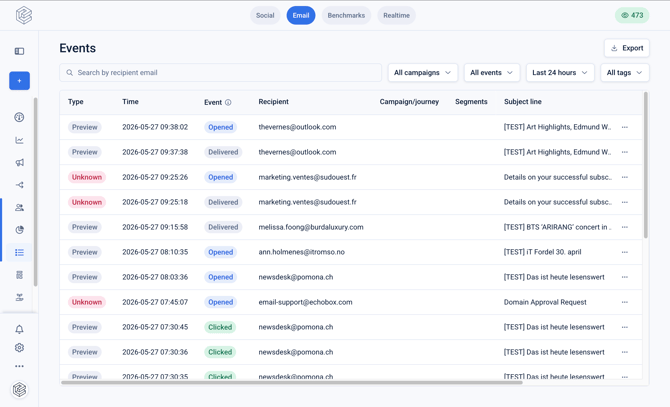
Using the Event log within Echobox
The Event log can be used to:
- Observing that Echobox is sending emails as you expect
- To triage and resolve subscriber issues such as subscriber not receiving emails
The search bar can be used to filter events to a specific recipient by searching by name, email domain or full email address.
The filter dropdowns can also be used to view events for a specific campaign, event type, time range or tag.
Viewing sent emails and clicks
You can view sent emails and clicks on a per recipient basis providing detailed observability to investigate and resolve subscriber queries.
Click on the 3-dot menu for any row in the Event log and click 'View sent email' to view the email that was sent to the recipient.
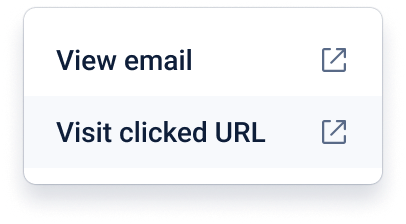
Click on the 3-dot menu for a click event event and click 'View clicked URL' to navigate to the URL that the recipient clicked.
Extracting event data from Echobox for reporting
Event data can be extracted from the Event log by:
- Manually exporting to CSV
- Using the Events API, see API reference here
This allows for both granular and aggregate reporting such as the below.
Granular
- Which subscribers have the highest open rate?
- Which subscribers have the highest click rate?
- Event history for a specific recipient
- Which subscribers have disengaged and reengaged?
- Which links drove the most clicks for a specific campaign?
Aggregate
- Aggregate performance metrics by campaign for a given time period
- Time series of performance metrics for a given time period
- Compare metrics across newsletters, journeys and transactional emails
Data retention
Per-subscriber event data is available for the last 30 days after which it is pseudonymised. To analyse events over a longer period event data should be extracted and stored externally to Echobox.