
Features
- Click Write to open a menu of prompts. Select a custom prompt instead of generating a generic message straight away.
- Create your own prompts. Give each prompt a name and a set of instructions, such as tone of voice, structure, emojis or a sign-off.
- Shared with your team. Custom prompts are saved to your Property, so everyone working on it sees and can use the same list.
- Edit or delete at any time from the three-dot menu beside each prompt.
- Use prompts in Studio templates for the share message, the overlay text and, on carousel templates, the subtitle.
- Works with automation. Templates that use a custom prompt also apply it to automated (Autofeed) shares.
How do I use custom prompts?
Custom prompts can be created in Studio to apply to your templates, or used directly to customise the message for a single post in the Social Compose Box.
Note - Custom prompts are visible to everyone on the Property, and anyone on the Property can edit or delete them.
Using custom prompts in Studio templates
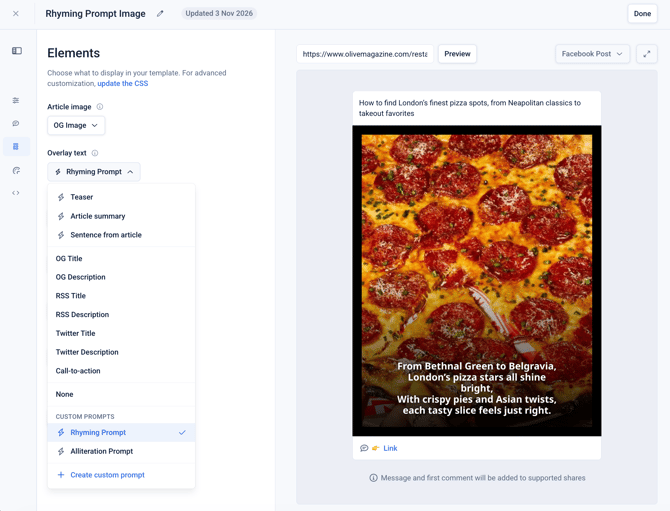
In Studio, prompts appear in their own Custom Prompts section of the dropdown for the following fields:
- Message (all templates)
- Overlay text (image and carousel templates only)
- Additional overlay text (image and carousel templates only)
Select a prompt and the template preview generates text from it. When the template is applied in the Compose Box, or used for an automated share, Echobox generates the text for that field using the selected prompt.
Using custom prompts in the Social Compose Box
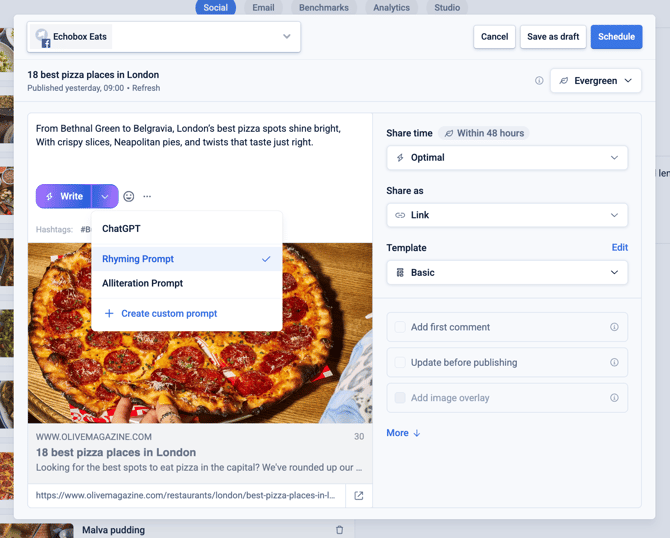
In the Compose Box, custom prompts appear in the dropdown of the Write button for this field:
- Message (the share message)
The dropdown starts with the Echobox prompt (ChatGPT), which writes messages the way Inspire me always has. This prompt can't be edited or deleted. Your Property's custom prompts can be found underneath the default.
Pick a prompt and Echobox generates a message for the article using it. Your choice stays selected, so you can click Write again for another version from the same prompt.
Creating a new prompt
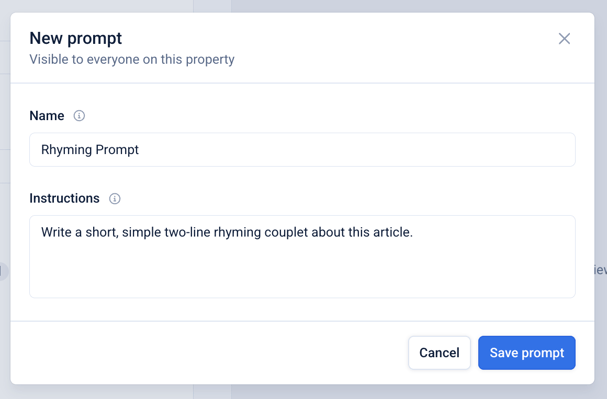
- Select + Create custom prompt at the bottom of the menu.
- Enter a name between 2 and 100 characters. This is how the prompt appears in the list, e.g. Breaking News.
- Enter the instructions, between 20 and 8,000 characters. The AI follows these every time, so describe the structure, tone and angle you want, e.g. Write a short, urgent opener suitable for breaking news.
- Click Save. The new prompt is selected and ready to use straight away.
Editing or deleting a prompt
Click the three-dot icon beside a custom prompt and choose Edit or Delete. The Echobox prompt can't be edited or deleted.
- Editing keeps the same prompt, so any template using it picks up the new instructions automatically.
- Deleting removes the prompt for everyone on the Property.
What happens when a prompt is edited or deleted?
When you edit a prompt:
- Studio template previews regenerate with the new instructions.
- In the Compose Box, AI text generated from that prompt (message and/or overlay text) is regenerated, and the image is re-rendered.
- Text you typed yourself is never replaced.
- Saved drafts and scheduled shares keep the text you already approved.
- Automated shares use the new instructions from then on.
When you delete a prompt, every template that used it switches that field back to a default:
| Field | Switches to |
| Message | ChatGPT |
| Overlay text | Teaser |
| Additional overlay text | Teaser |
Text generated from the deleted prompt is no longer shown in Studio or the compose box.
Tips for writing a good prompt
- Keep the output short. Generated text is limited to social-post length, roughly a couple of sentences. A prompt asking for a long summary may be cut short. Ask for a bounded result, such as one sentence under 30 words or a two-line summary.
- Be specific about tone and structure. For example: Open with a question, keep it conversational, end with one relevant emoji.
- Your instructions take priority. Your page's usual settings for length, emojis and hashtags aren't added on top, so include them in the prompt if you want them.
- Language: text is written in your page's language unless your prompt asks for a different one.
- Links: the article link is only included if your prompt asks for it. Echobox inserts your article URL; you don't need to paste one.
- The AI works from the article. It uses the article's text, so ask it to change the angle or style rather than to add facts that aren't in the article.
- Test before you rely on it. Click on Write a few times on different articles, or preview your message on a Studio template before using a prompt in an automated template.
Who can see my custom prompts?
Everyone on the same Property. Prompts aren't shared between properties.
Why isn't my message as expected?
You may not get the expected output if your prompt was deleted or failed to generate a valid message.
If the prompt has been deleted, Echobox uses its own prompt instead. If the AI can't produce a valid message from your custom prompt, Echobox uses a quote from the article for the message, overlay text and additional overlay text. See Tips for writing a good prompt to help your prompts generate valid messages.
Which AI Tool is used to generate my prompts?
Echobox uses OpenAI's GPT-5.4 model via OpenAI's Responses API to generate your messages and overlay text.
Which languages are supported?
Echobox AI messages are written in your page's language. You can find the full list of supported languages here.
Who can create custom prompts?
Admin users within your Property can create custom prompts within the Social Compose Box and Studio. Editors can also create prompts within the Compose Box.
Does editing a prompt change posts I've already scheduled?
No. Drafts and shares already in your queue, including automated ones, keep the text they already have. The updated instructions only apply to text generated after you save, for new posts created in the compose box or when a template generates it for a brand new automated share.
Can I edit the Echobox prompt?
No. It's always available as a fallback. To write in a different style, create a custom prompt.