
Overview
With 2FA enabled, logging in requires both your password and a time-sensitive code generated by an authenticator app on your phone. Even if your password is compromised, an attacker cannot access your account without the second factor. You set it up once and it applies to every subsequent login.
Why this matters
- Your Echobox Email account contains sensitive data including your full subscriber list and send history
- Many organisations require 2FA on all business tools as a matter of policy
- Setting it up takes under two minutes and significantly reduces your risk
Before you begin
Download an authenticator app on your phone. Google Authenticator and Authy are both compatible with Echobox Email.
How to enable two-factor authentication
1. Click the profile icon in the bottom left of the screen and select 'My profile'
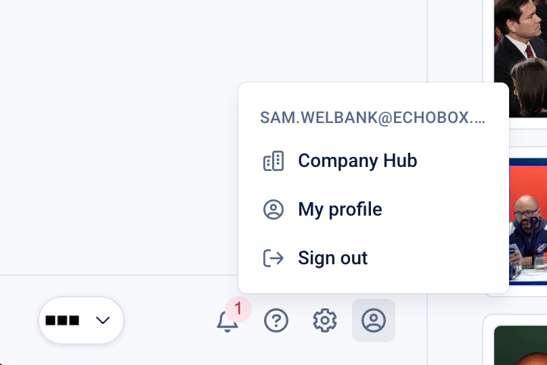
2. Enable the toggle on 'Two-Factor Authentication (2FA)'
3. Scan the QR code to add the the token to your authenticator app
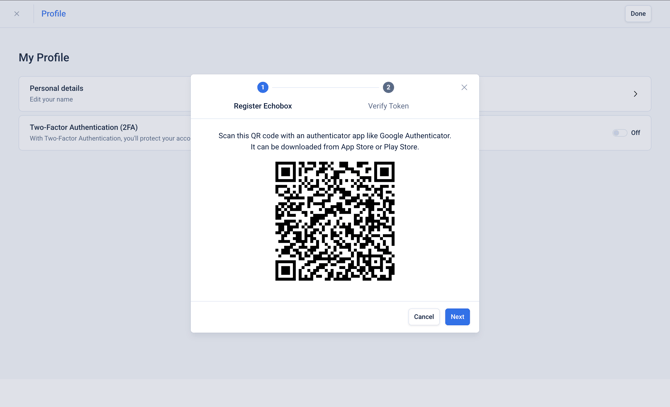
4. Enter the six digit code from your authenticator app to verify it works correctly
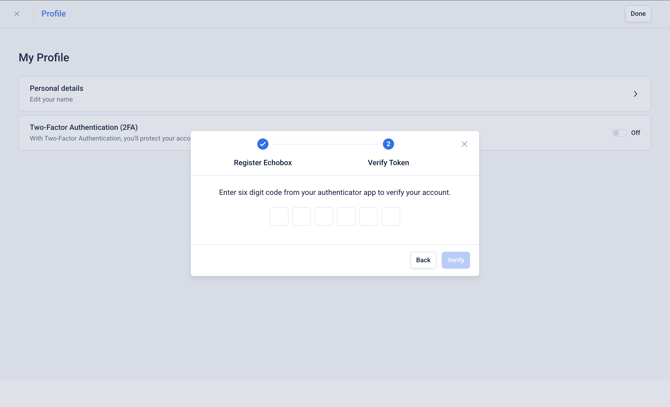
5.
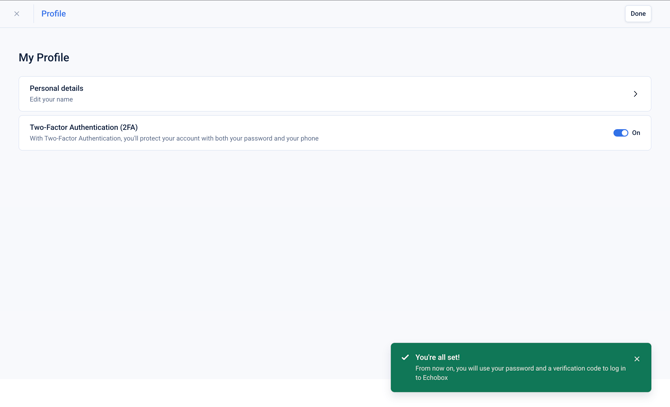
You have now successfully set up two-factor authentication. You will be prompted for a verification code on every subsequent login.
If you lose access to your authenticator app and do not have your backup codes, contact Echobox support to regain access to your account.