
What are Marketing templates?
Marketing templates are used to create static email templates that can be sent as ad-hoc promotional emails, via journeys, or via the transactional API.
For more details please refer to this article: An overview of Marketing templates.
Navigating the editor
The editor contains three main sections:
-
The left hand toolbar
- The configuration panel
- The interactive preview
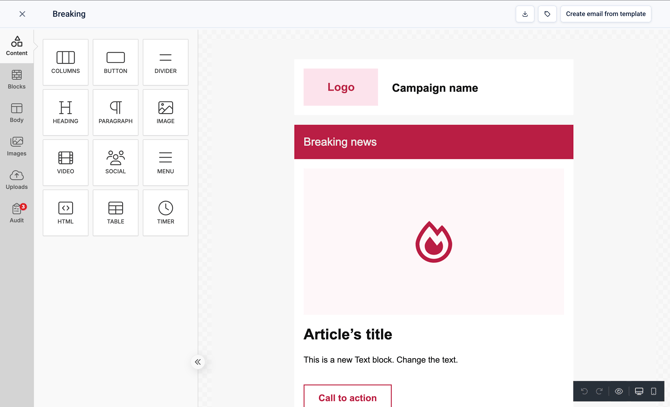
Navigating the editor menu
Content
The 'Content' menu allows you to drag blocks from the configuration panel to the preview, to add it to the template.
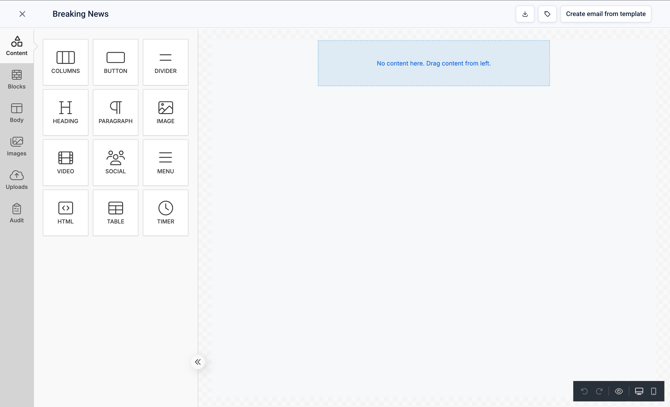
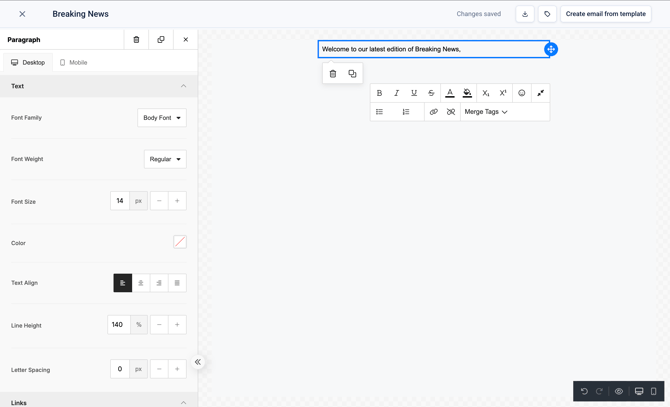
After dragging a block to the preview, in this case a 'Paragraph' block, you can select it on the interactive preview to edit the text and to access styling options via the preview.
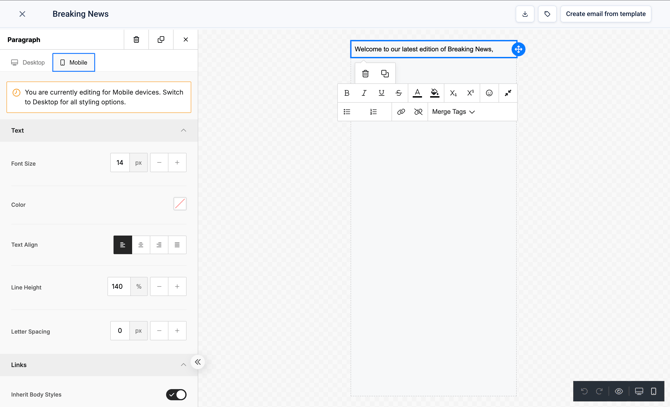
In the left hand configuration panel there are additional configuration options such as the font size and text alignment, as well as the option to switch to the 'Mobile' tab and modify the styling configuration for mobile.
Blocks
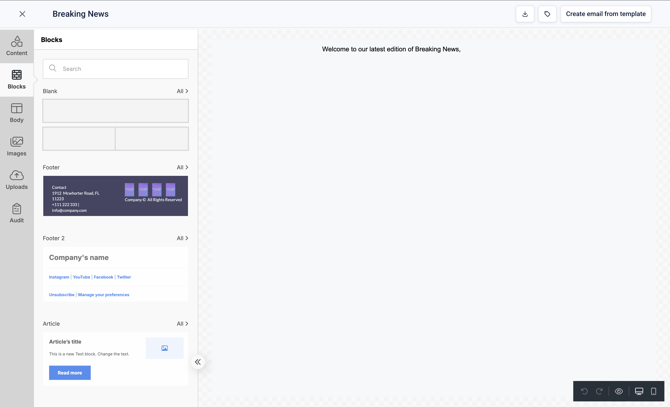
The 'Blocks' menu allows you to access any previously saved blocks such as a commonly used footer. This means you do not need to recreate common blocks for each template.
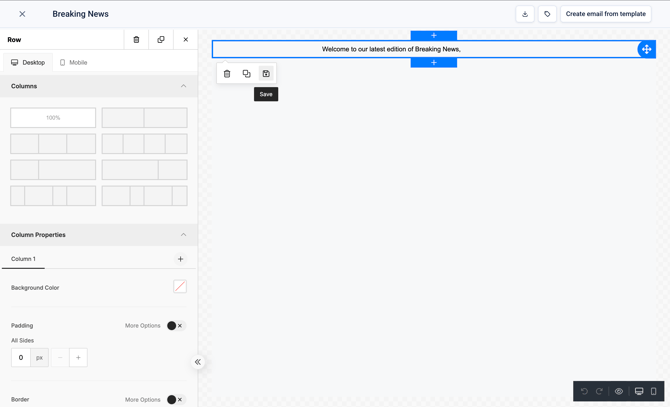
To save a block so that it can be re-used, hover over it in the preview and click on the 'Save' icon.
Body
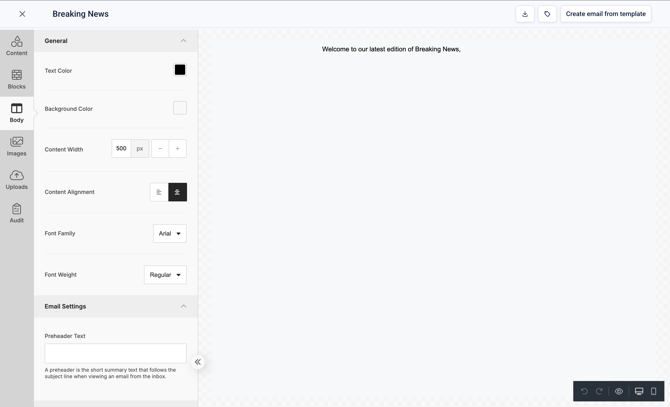
The 'Body' section can be used to set defaults for the template such as text color and the content width.
Images
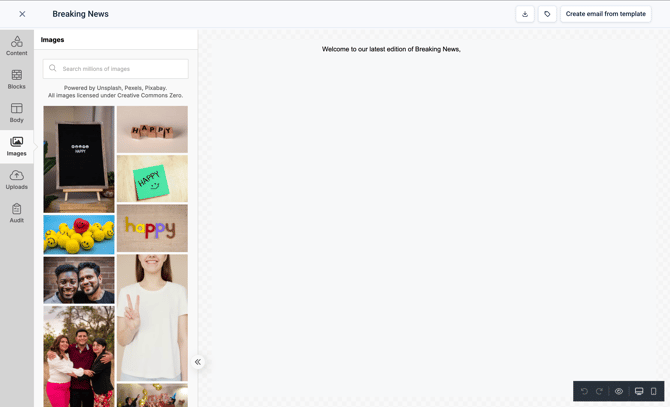
The 'Images' section can be used to find freely licensed images for use within the template.
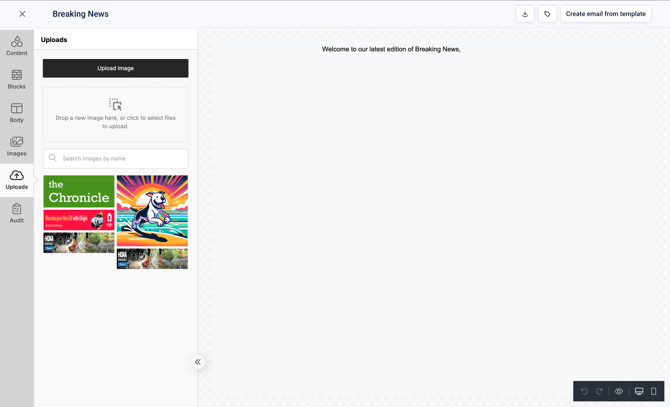
Uploads
The 'Uploads' section can be used to upload images for use within the template.
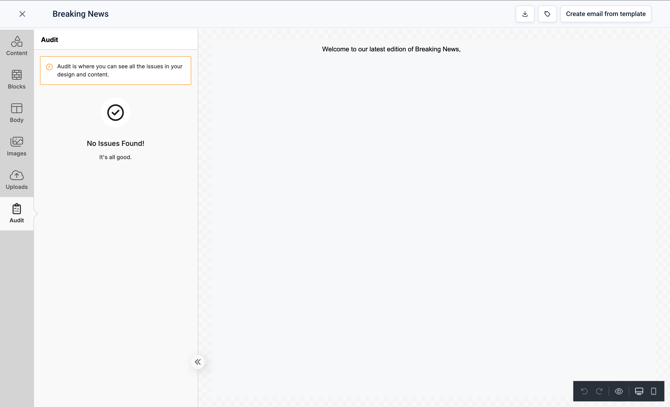
Audit
The 'Audit' section can be used to audit your template for any rendering issues that may occur.
Additional documentation
For additional, in-depth documentation on how to use the editor please see: https://docs.unlayer.com/builder/email-builder