What are Editorial templates?
Editorial templates can be populated with content from RSS feeds, and support content personalization.
For an overview of what Editorial templates are please refer to this article: https://help.echobox.com/creating-a-new-editorial-template
Navigating the editor
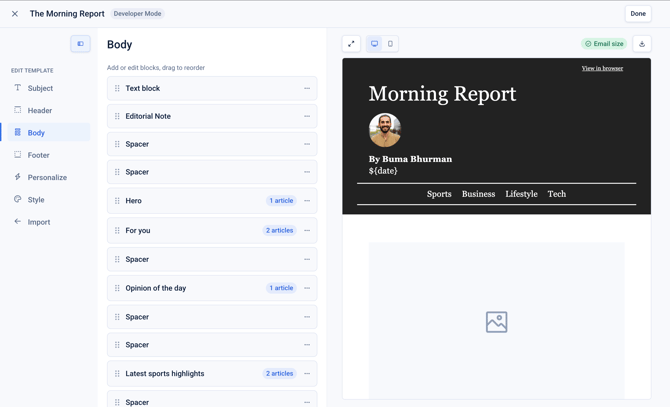
The editor contains three main sections:
- The left hand navigation menu
- The block menu
- The template preview (on the right hand side)
Understanding the editor menu
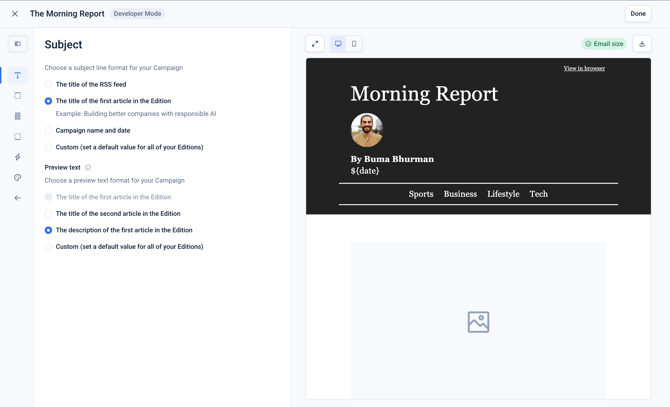
Subject
In the subject line section you can configure the subject line settings for the template. There are various options from dynamic subject lines that use the title of the first article, the campaign name, or custom static values.
Header
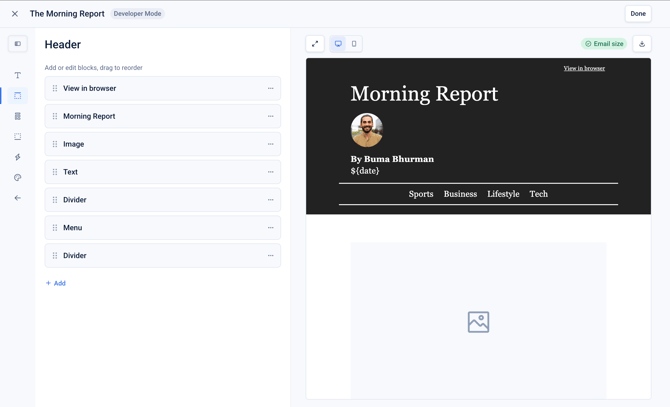
The Header section displays the block based template editor for the header of your newsletter. This refers to the section above any contents which typically includes a header image, title, view in browser link etc.
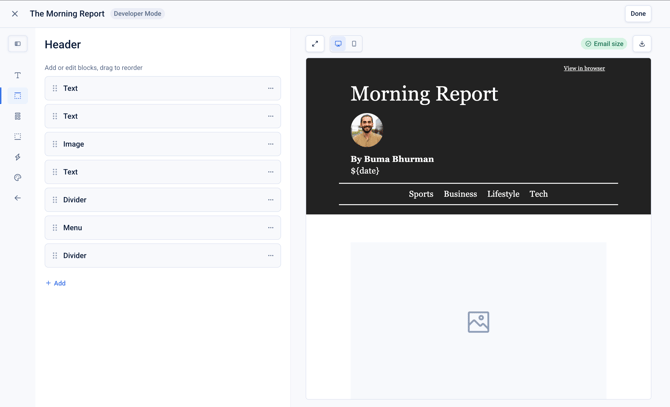
Click '+ Add' to add new blocks from the block menu, or click into a block to edit it's contents and styling. You can also drag the blocks to reorder them.
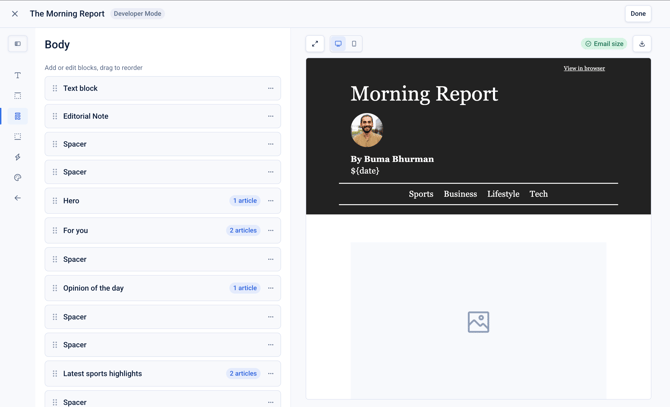
Body
The Body section allows you to add and configure blocks for the main body of your newsletter template. This includes configuring article blocks, images, dividers and any advertising blocks.
You can also configure styling for all of the blocks.
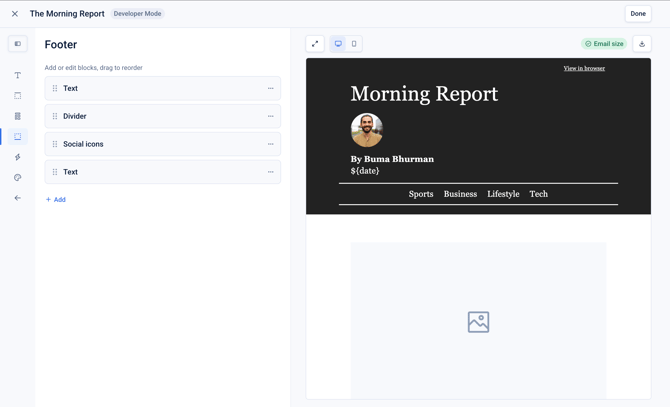
Footer
Similarly to the Header, and Body sections, the Footer section allows you to configure the footer of your Editorial template. This section commonly includes text, social media icons and links, and the unsubscribe link.
Personalize
The Personalize section allows you to configure the content personalization settings for the template.
There are three content selection modes available:
- Personalization disabled
- Article selection and article ordering enabled
- Article ordering enabled
See here for more details: https://help.echobox.com/how-to-personalize-your-content
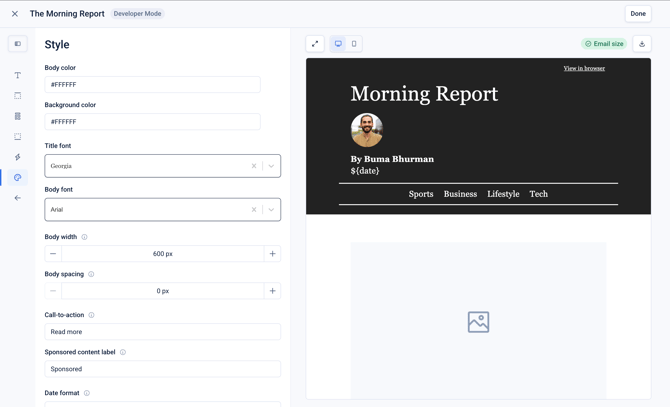
Style
The Style section allows you to set default styling configuration for the template including the body and background colour, the fonts, and template width.
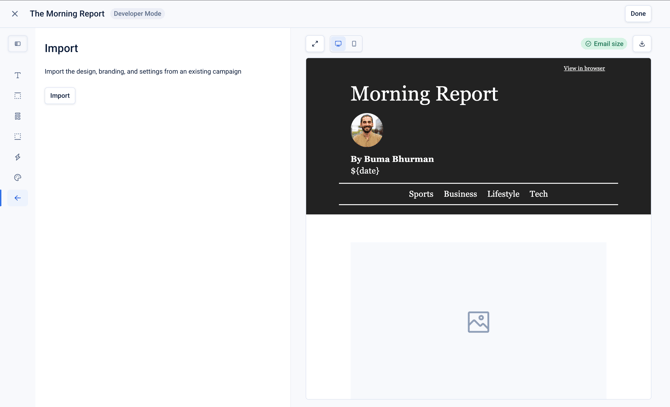
Import
The Import section allows you to import branding configuration from another campaign. This allows you recreate similar templates quickly, without having to reconfigure all the branding settings.
How to add template blocks
Across the template section: Header, Body, Footer, the editor works in the same way where you can:
- Add a block
- Add contents to the block
- Style the block
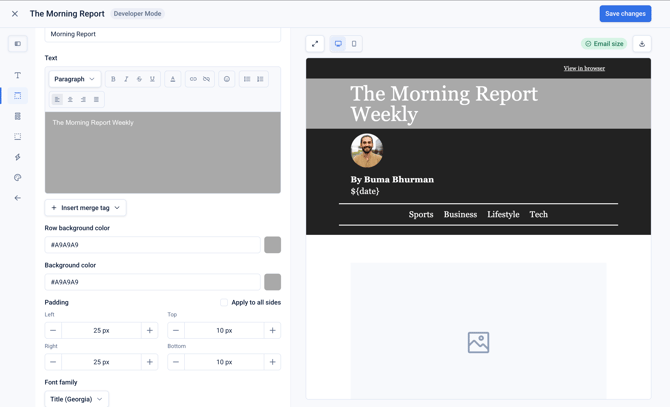
For example, in the header section, after clicking on the 'Morning Report' block, which is the newsletter title for the Campaign, you can see the content that has been added is the "Morning Report" text value in the text input box on the left hand side.
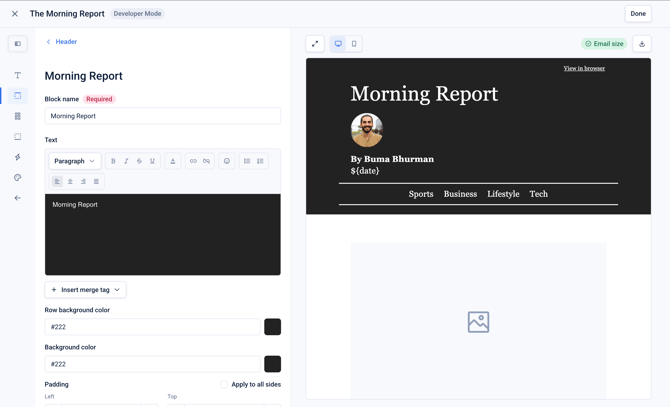
If the text entered is updated, the preview will re-render, displaying the latest changes.
How to style template blocks
After adding the content (i.e. the text for the title), you can configure various styling settings for the block including the row background colour, background colour, padding, font size and family, and much more.