Overview
If you have an existing newsletter that you are migrating to Echobox, you will need to upload existing subscribers into the system. This guide walks through how to upload existing subscribers.
All subscribers are stored at the property-level, which a field that indicates which campaigns within the property they are subscribed to.
Recreating custom fields
Navigate to your subscriber list by selecting 'Subscribers' in the left hand navigation.
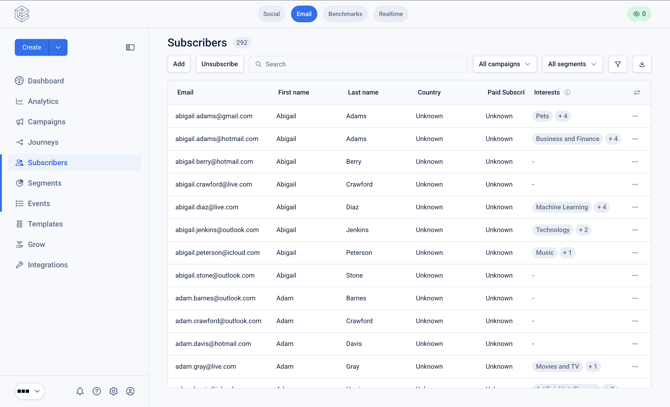
Click on the tool icon in the top right of the subscriber list box (beneath the 'download' icon).
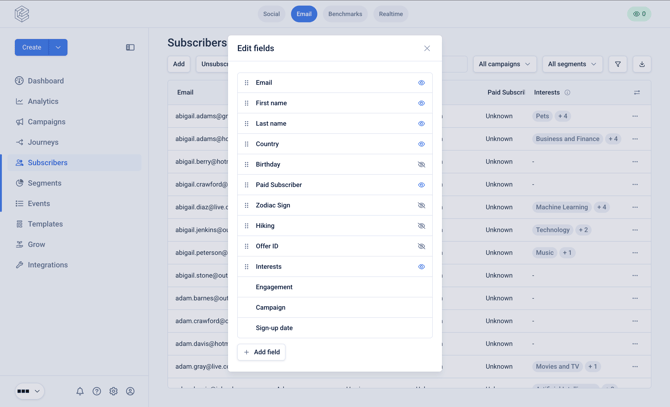
From this modal you can add any fields that you wish to store data against when you migrate subscribers to Echobox.
Click 'Add field'.
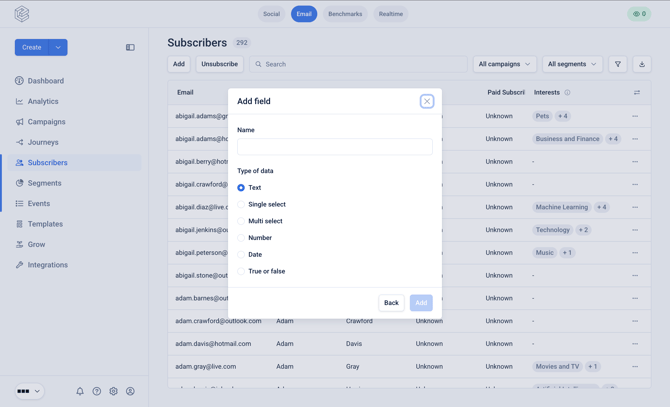
Provide a name for the field, and select the data type you wish to use.
Accessing your upload template
Once you have defined all the fields that you wish to migrate, click 'Add', and tab to 'Upload subscribers'.
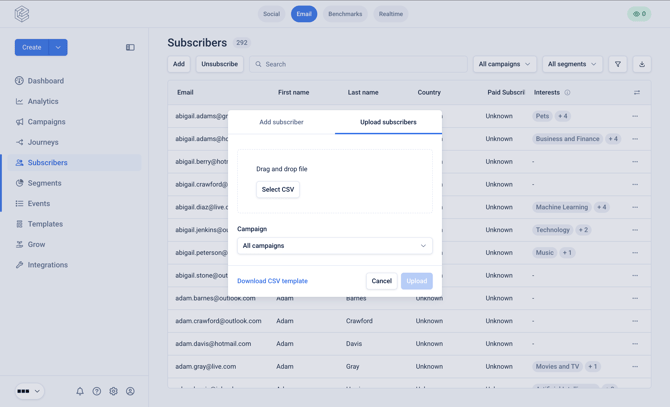
Then click 'Download CSV template'. This will provide you with a CSV template with the columns that are expected to be present in the upload file.
Export the subscriber list to be migrated from your existing platform, and map the structure the fields in the template.
Note: Subscribers are required to be uploaded per campaign, so you will need to split the list based on who you wish to upload to each campaign within the property.
How to upload the subscriber list
Once you have prepared your CSV, select your CSV from the modal.
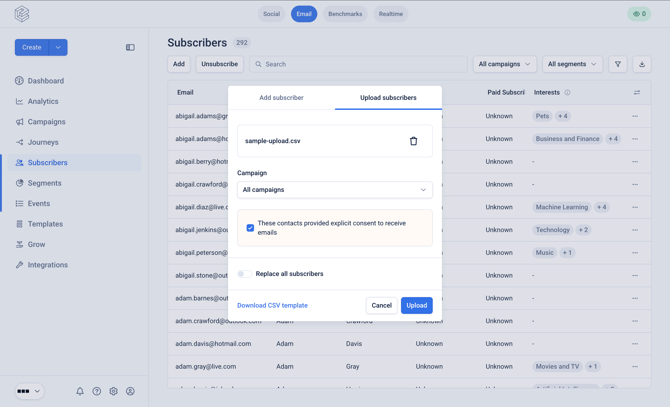
You will need to confirm that you have captured consent to send emails to these subscribers.
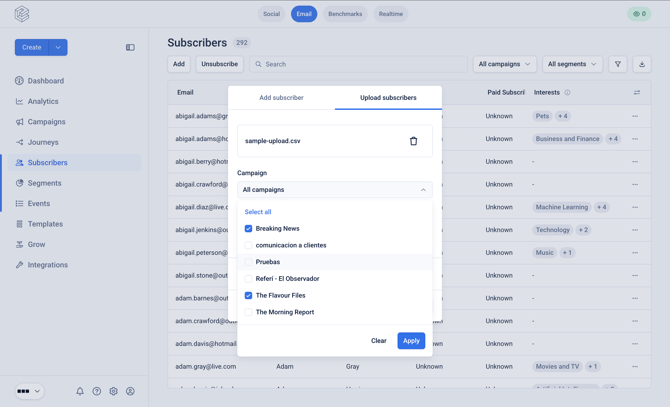
Select the Campaigns you wish to upload the subscribers to, by default the subscribers will be uploaded to all Campaigns within the Property.
Should I replace all subscribers?
If you enable 'Replace all subscribers', all existing subscribers will be removed and all the subscribers in your CSV will be added.
If you wish to add new, additional subscribers leave 'Replace all subscribers' disabled.
Click 'Upload' to initiate the upload, this will take a few minutes.
Verifying successful upload
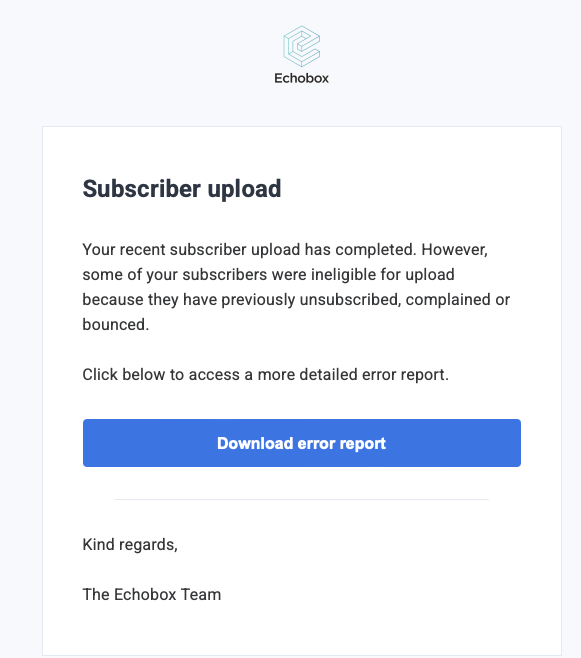
Upon completion of the upload you will receive an email communicating if the upload was completely successful or if there were any failures.
If you attempt to re-upload subscribers who have previously unsubscribed, complained or bounced they will not be uploaded and you will be able to download the error report to see the subscribers who were not uploaded.