
How do I send a Marketing email?
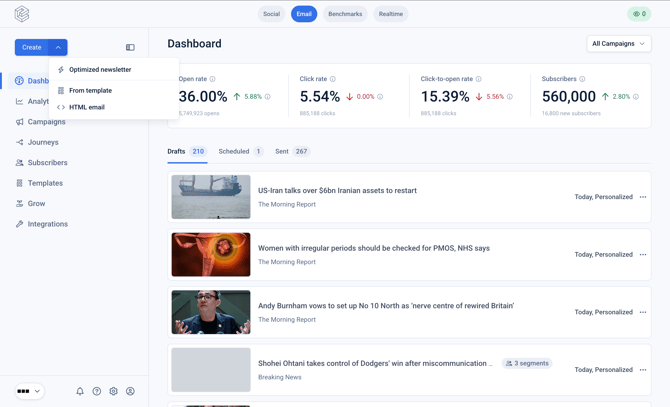
From the main Dashboard click on the dropdown to the right of the 'Create' button and click 'From template'.
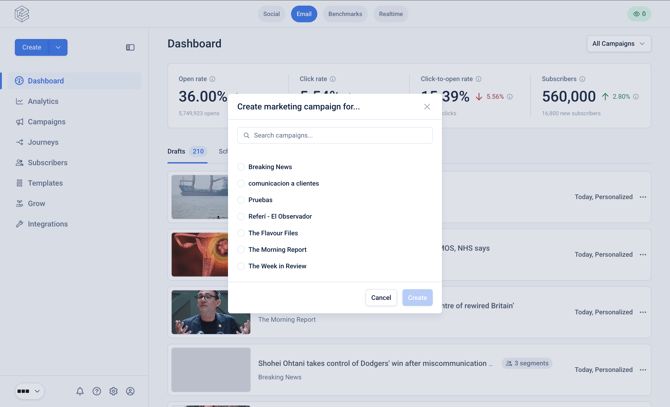
Select the Campaign from which to send the email.
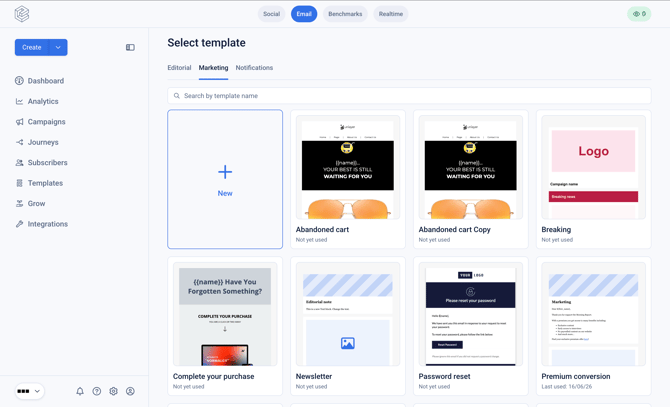
Select the Marketing template you wish to send as an Edition.
You will now see the editor where you can make any changes for the specific Edition. Any changes here will only apply to the Edition, unless you click 'Save template', which will save the changes made to the template.
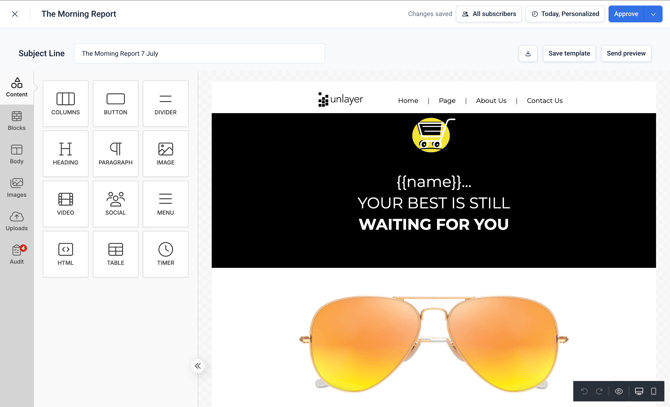
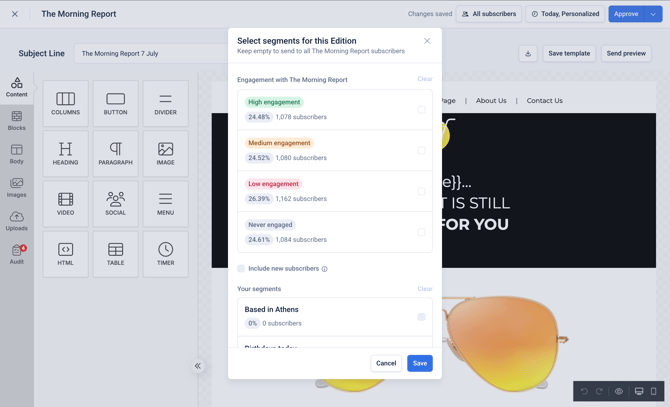
Once you've applied the changes click 'All subscribers' to choose which segments to send the Edition to, or leave it as 'All subscribers' if you want to send to the full Campaign list.
Click 'Today, Personalized' to view and change the schedule options for the Edition.
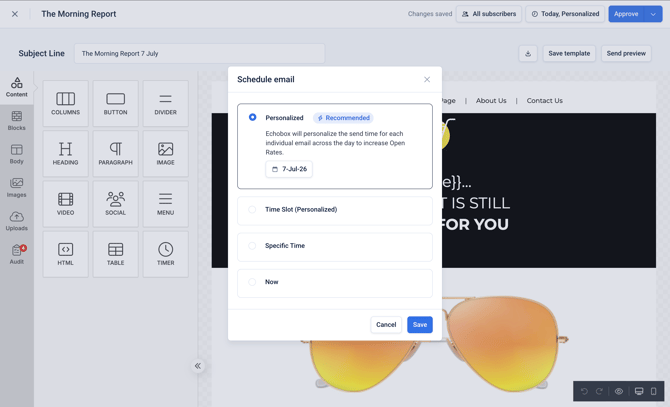
By default it will use the personalized send time, and send across the remainder of the full day, tailoring the send time to each recipient's last open time.
Finally, click 'Approve'. Your Marketing edition is now approved, and will shortly move to the 'Schedule' queue on the dashboard to begin sending.