
Overview
Segmentation allows you to organize your audience into groups based on subscriber data. You can then send different content to each segment. For example you may wish to,
- Send a different Edition to subscribers who have expressed interest in a certain topic
- Send more frequently to subscribers with specific attributes and who have a ‘Low’ engagement level to attempt to re-engage them
- Send an offer or an upsell to subscribers with specific attributes and who have a ‘High’ engagement level as they are engaging frequently with your content
Segmentation combines powerfully with custom subscriber fields, which allows you to capture and store a rich data profile for your subscribers, which you can use for granular segmentation. See ‘How to work with custom subscriber data’ for more information.
Custom field data
Segmentation is possible without storing custom field data for your subscribers in Echobox, however the data available to segment upon is limited to engagement data collected by Echobox.
See ‘How to work with custom subscriber data’ for more information.
View existing segments
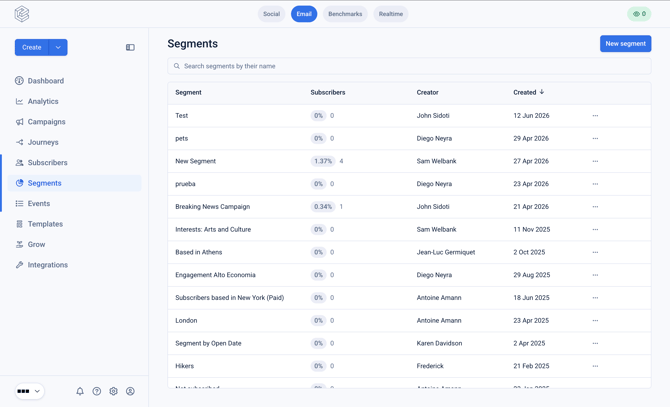
To view your segments navigate to 'Segments' in the left hand navigation menu, under 'Subscribers'.
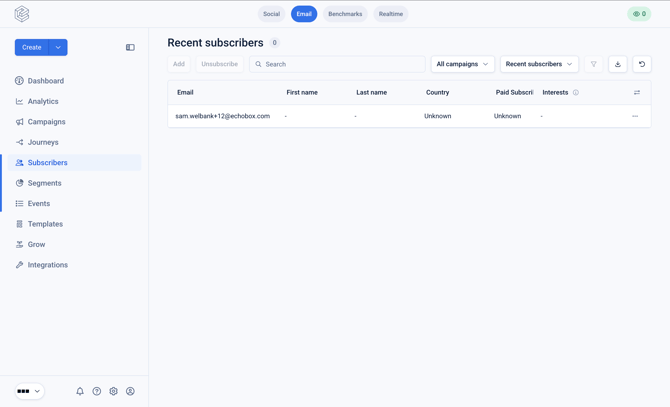
To view subscribers within an existing segment, navigate to your subscriber list and toggle the 'All segments' dropdown to a specific segment to view the segment members.
Creating a new segment
There are two ways to create a new segment.
- By filtering the subscriber list and then saving the criteria as a segment
- By configuring the criteria from the 'Segments' page
Filtering subscriber list
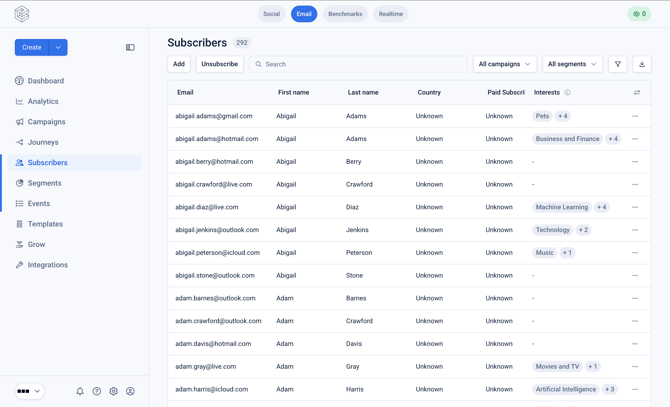
From the subscriber list click on the filter icon in the top right.
This will display the modal which you can use to configure the criteria for the segment.
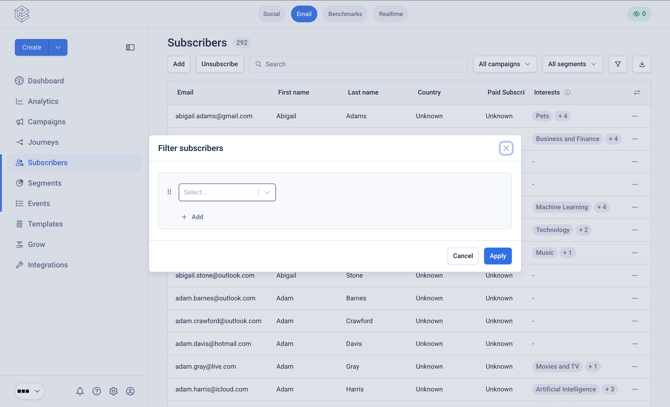
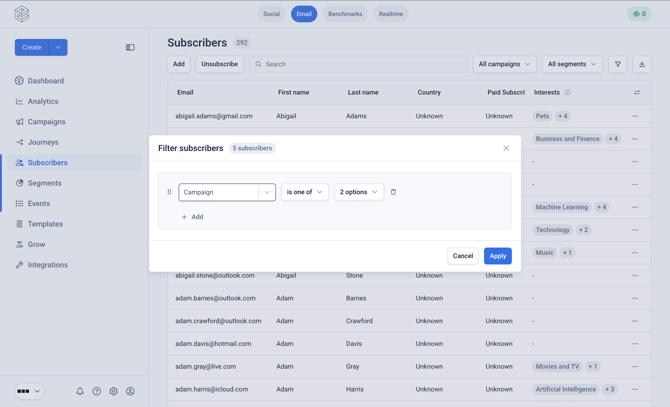
After selecting a field you will be able to select the appropriate operator and the value.
You can flexibly combine the criteria using ‘AND’ and ‘OR’ statements to group your subscribers.
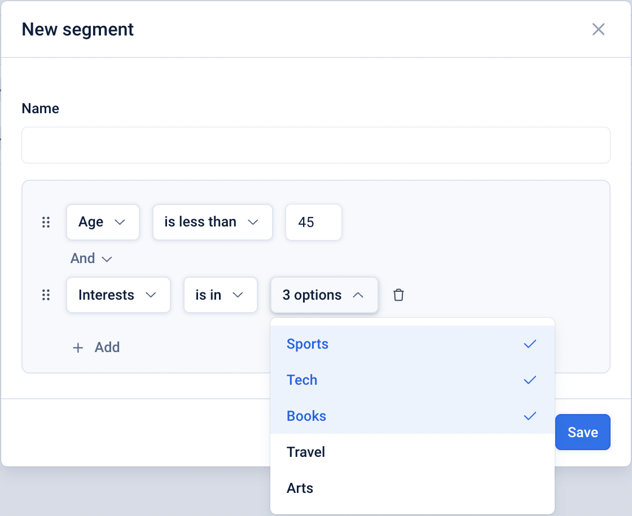
As the criteria is applied, you will see the number of subscribers that currently meet the criteria displayed.
Creating new segment
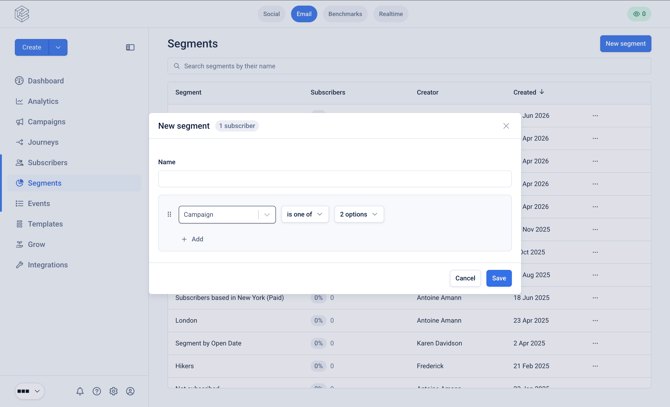
Similarly, you can create a new segment by clicking on 'New segment' from the 'Segments' page.
Updating or deleting a segment
You can edit and delete a segment by clicking the 3-dot menu on a segment.
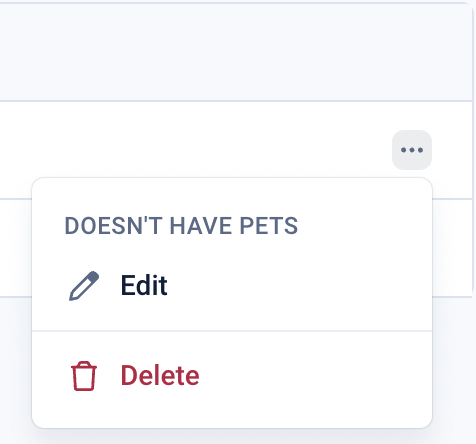
Clicking ‘Edit’ will allow you to make changes to the segment criteria.
Sending to a segment
After creating an Edition you will see the settings below in the top right corner.

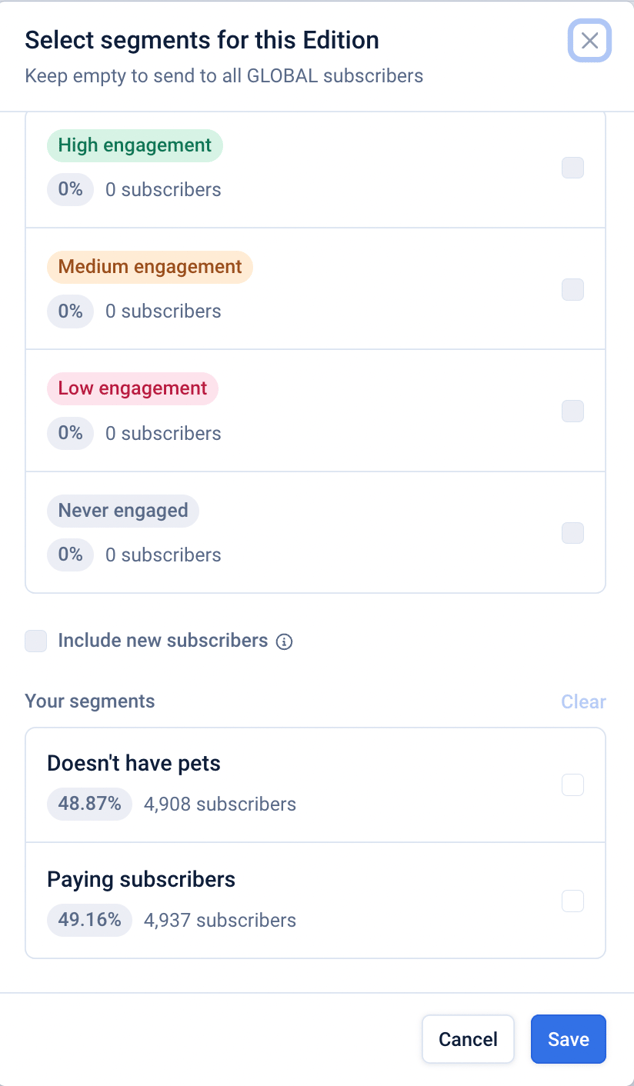
By clicking on ‘All subscribers’, you can select one or more segments to send the Edition to. The top segments refer to engagement-based segments, whilst the ‘Your segments’ section refers to segments you have defined.
Saving default segments for a campaign
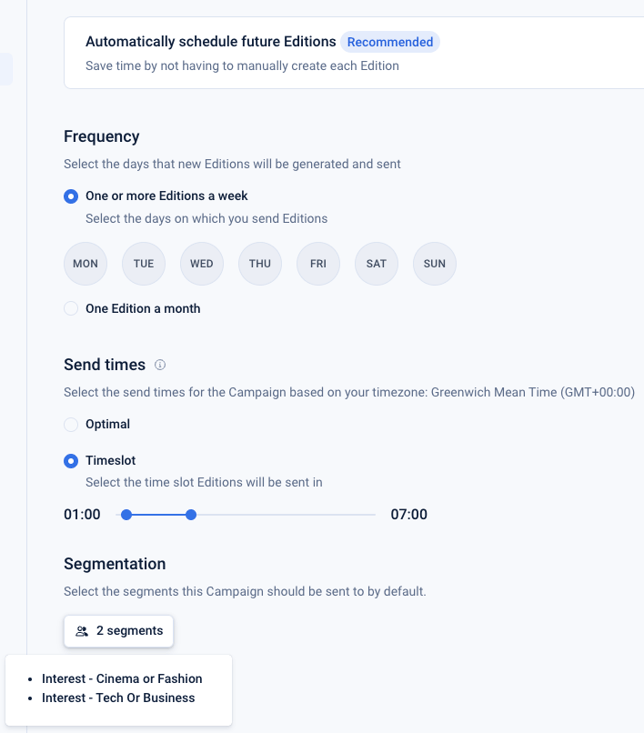
You can save default segments for a campaign on the Automation settings page. Echobox will remember these preferences for Editions that are manually approved and for Editions that are sent automatically.
You can override the saved defaults on a per edition basis using the segment selector.
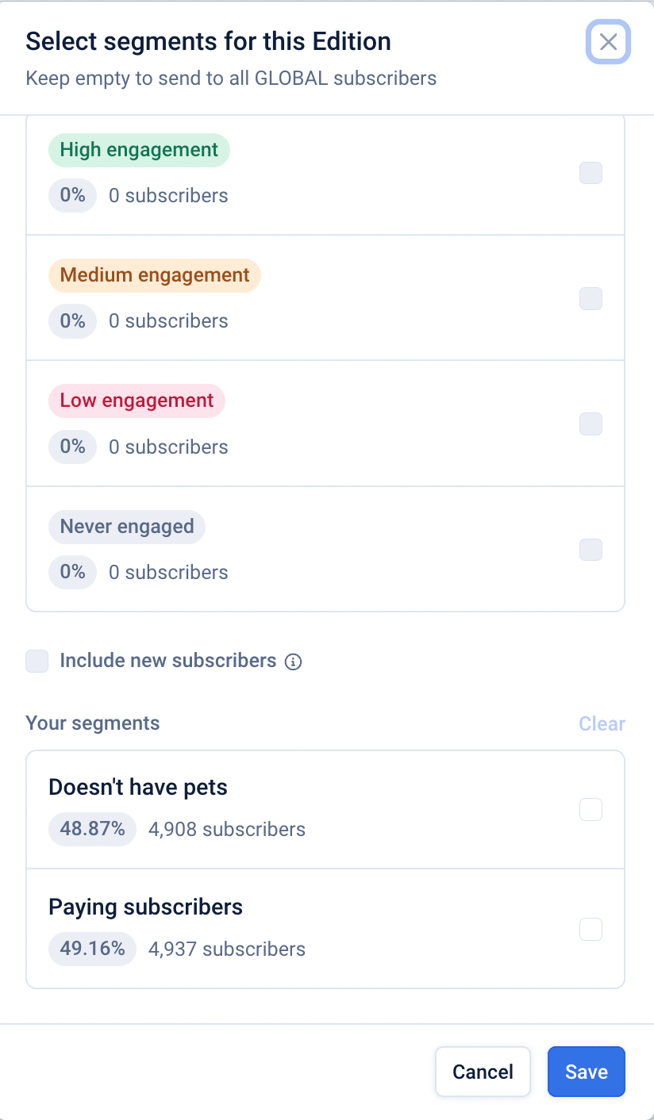
This feature can be used exclude subscribers with low engagement or to target specific custom segments. It can also be used in conjunction with new campaigns, allowing you to use different content or send time strategies for different segments.