
How to enable 'View In Browser'
Overview
‘View In Browser’ is a setting that allows your subscribers to click a link to view your email Editions in the browser. This allows you to offer an online version of your email to readers who may have trouble viewing messages in their email client or have image loading turned off.
Enabling 'View in browser'
Navigate to templates via the left hand navigation and select the template where you wish to add a ‘View In Browser’ link.
‘View In Browser’ links are typically added in the Header section. Navigate to the 'Header' section via the left hand nav, click '+ Add' and select the 'View in browser' block.
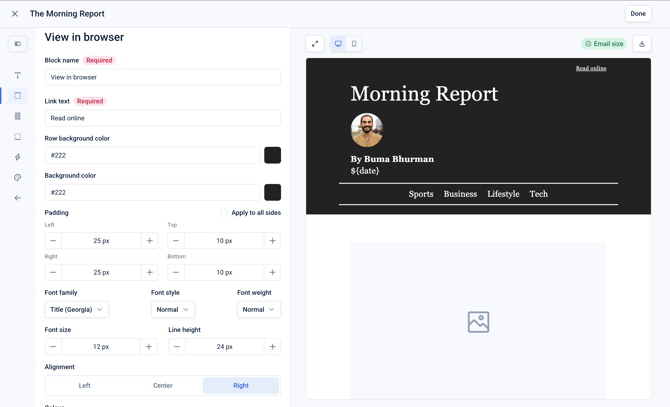
Click into the block to configure it, from here you can:
- Add the text value in 'Link text' input
- Provide row background and background colours for the block
- Add padding, and various font styling such as font family, and size
- Specify the alignment of the text
The ‘View In Browser’ link will be valid for 30 days and will work for all Editions including those where content personalization is enabled.
It can also be enabled for drag & drop templates and HTML emails by including the relevant tag in the template.
Note: the ‘View in browser’ link is clickable from the preview but will not render the Edition correctly. This is because the URL is constructed after the Edition is sent to your subscribers.