
What is a verification email?
A verification email is immediately sent to new subscribers when you have double-opt in enabled. It requires new subscribers to confirm they want to sign-up to the newsletter. Double opt-in ensures only legitimate email addresses make it onto your list.
If double-opt in is disabled you can configure a Confirmation instead, see this article for how to do so.
How do I design a verification email?
1. To design your welcome email navigate to 'Templates', select 'Notifications' and click 'New'.
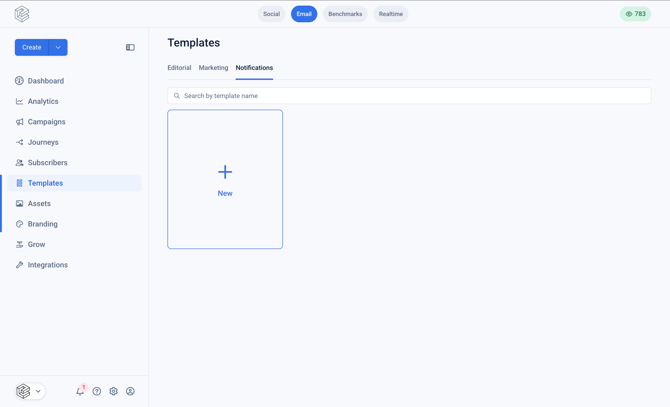
2. Provide a name for your template
3. Design your template in the template editor
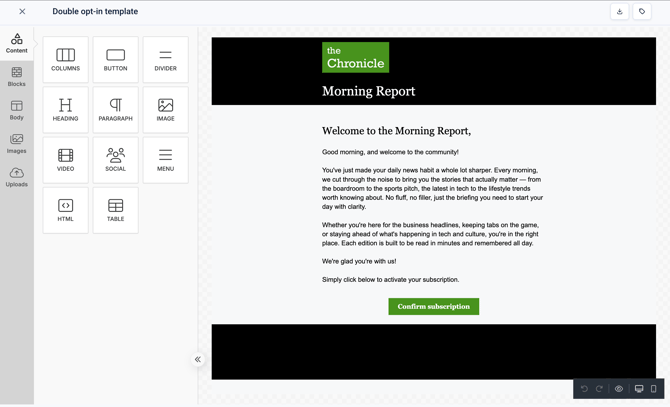
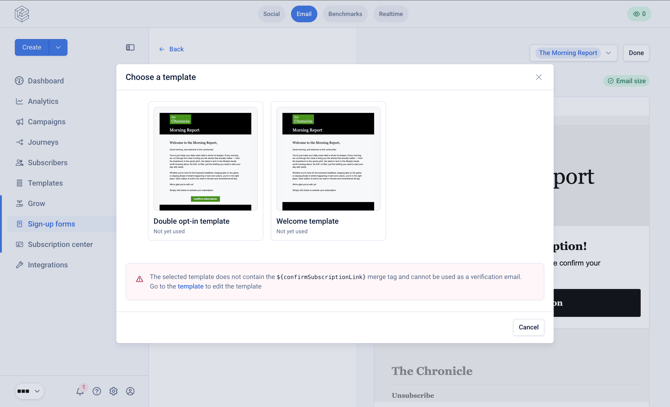
You must ensure that you have a Confirm Subscription Link within the template. This allows Echobox to populate the merge tag in the link with the correct URL so the subscriber is added to campaign when they click it.
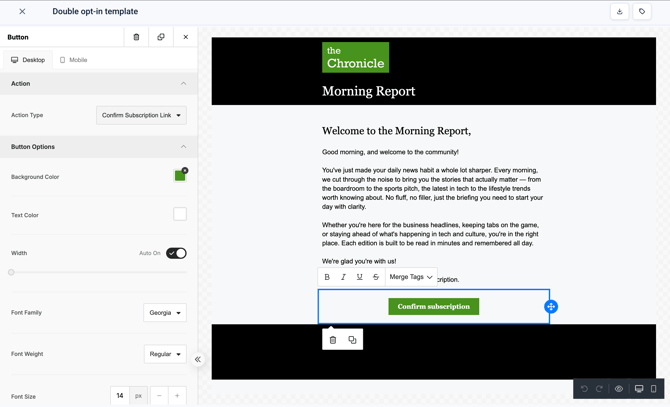
If you are adding a button, simply select 'Confirm Subscription Link' for the Action Type.
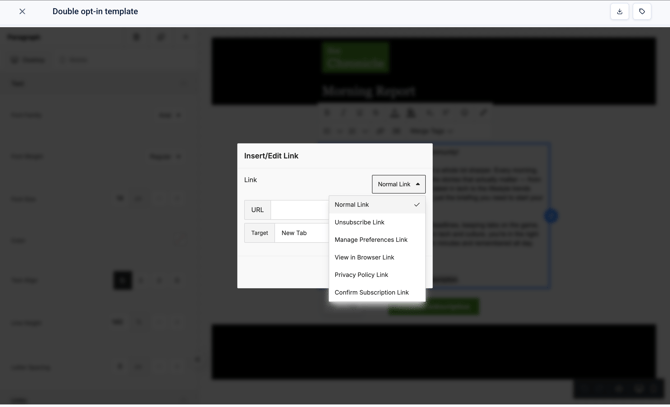
If you are adding the link to text select 'Confirm Subscription Link' from the Link dropdown.
How do I configure a custom verification email?
1. Navigate to 'Grow' the left side bar and select 'Sign up forms'
2. Select the campaign for which you wish to configure the custom verification email
3. Click on 'Follow-ups'
4. Click on 'Confirmation'
The default verification email will be displayed
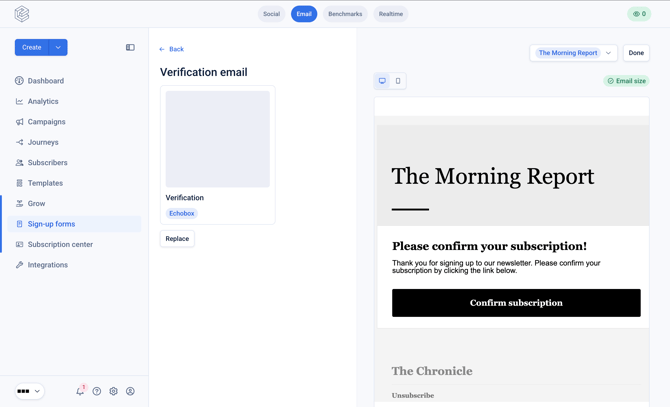
5. Click 'Replace'
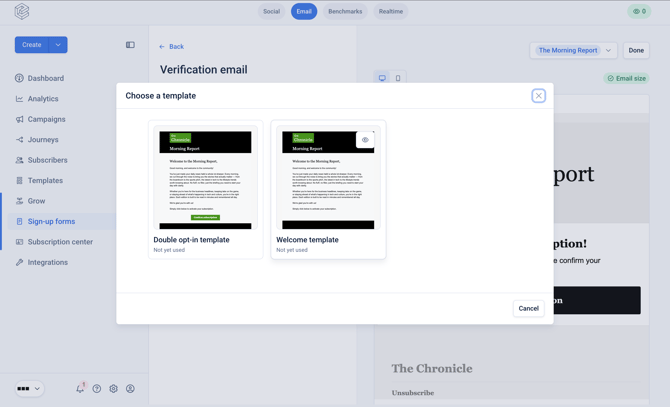
6. Select your custom email from the 'Choose a template' modal, and then click 'Done'
If you have not successfully adding the Confirm Subscription Link merge tag within the template, you will not be able to select that template for the verification email.
You have now successfully set up your verification email. Do note that any changes made to the template will be reflected immediately in the email sent to new subscribers.