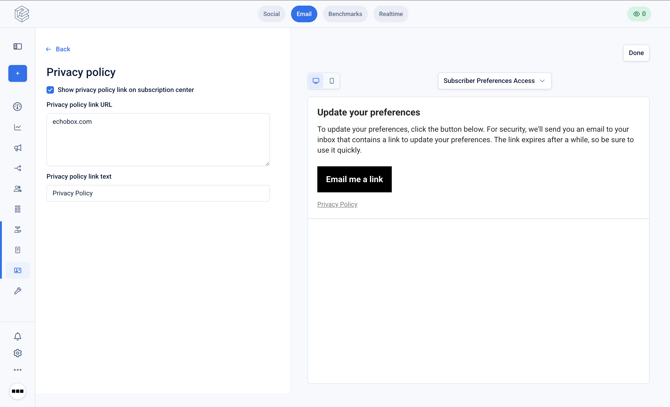
What is the subscription center?
The subscription center is refers to a managed flow where subscribers can click on a 'manage your preferences' link a newsletter, and be navigated to a Echobox-hosted page where they can:
- View their Campaign subscriptions for the Property
- Update their subscription statuses for Campaigns in the Property
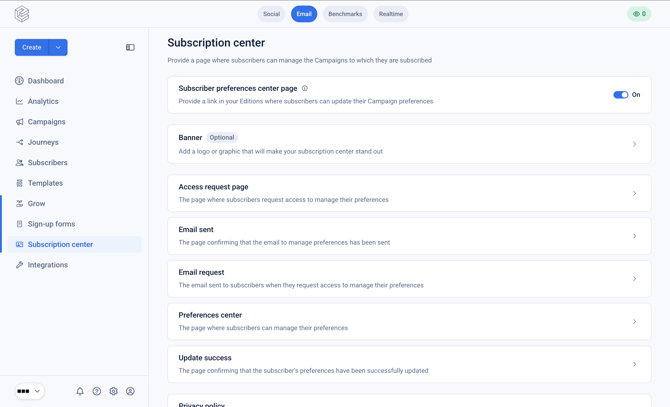
How does it work?
The subscription center flow navigates a subscriber through the following steps:
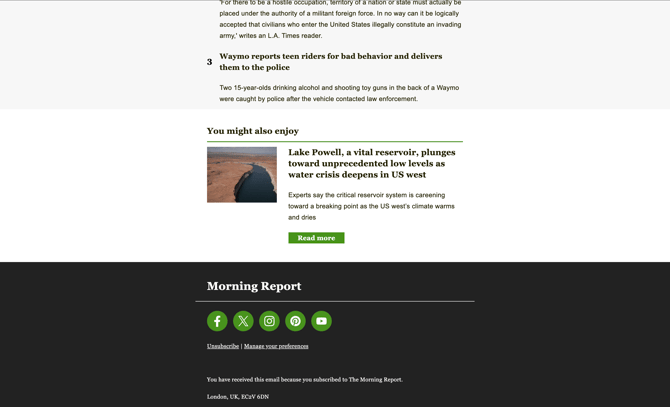
- Subscriber clicks on 'Manage your preferences' in the footer
- Subscriber is taken to a hosted page with an 'Email me a link' button
- If clicked, the subscriber is sent an email with a button that will navigate them to the preferences center
- On the preferences center they can update the subscription statuses for Campaigns in the Property
- Success messaging will be displayed and their Campaign subscriptions will be updated
How do I configure it?
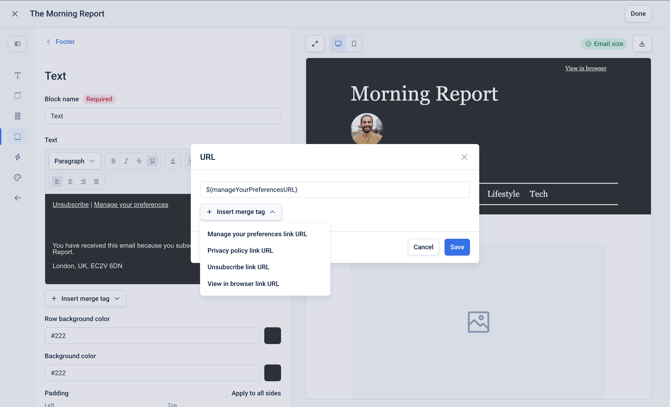
Including the 'Manage your preferences URL' in Editorial templates
Navigate to your templates by clicking on 'Templates' in the left hand nav, and select the relevant Editorial template.
A 'Manage your preferences URL' merge tag can be included by inserting a text block and accessing the link menu for the text. From here you can click 'Insert merge tag' and insert the relevant merge tag as the link target.
Typically the 'Manage your preferences URL' is present the footer near the 'Unsubscribe' link.
Access request page
After clicking the 'Manage your preferences' link within the newsletter, the subscriber will be navigated to an 'Access request page'.
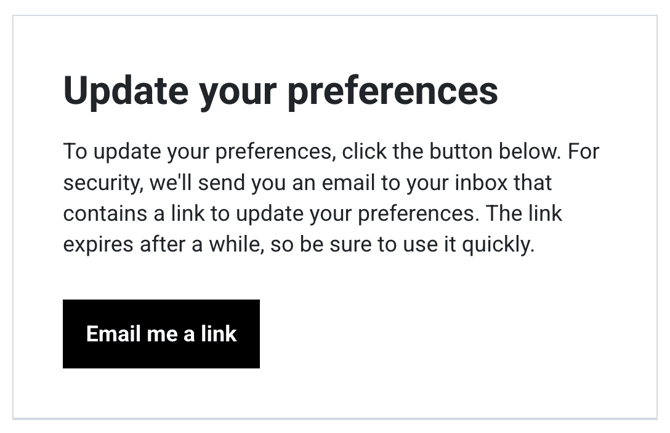 This will include a button, that when clicked, will generate a link that is unique to each subscriber that will be emailed to them.
The title, description and button text can be edited on the 'Access request' page within the 'Subscription Center'.
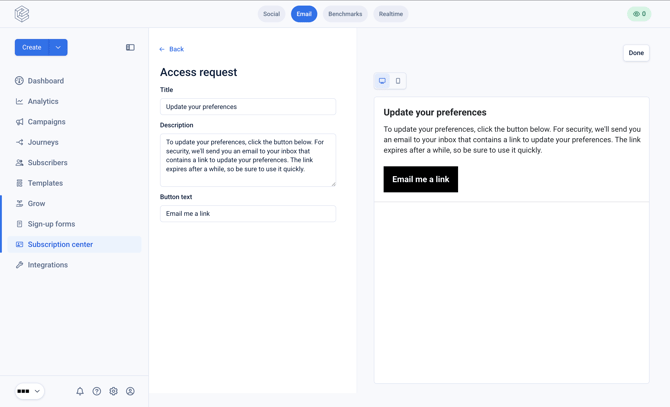
Email request
After clicking the link in the page above, the email will be sent to the subscriber.
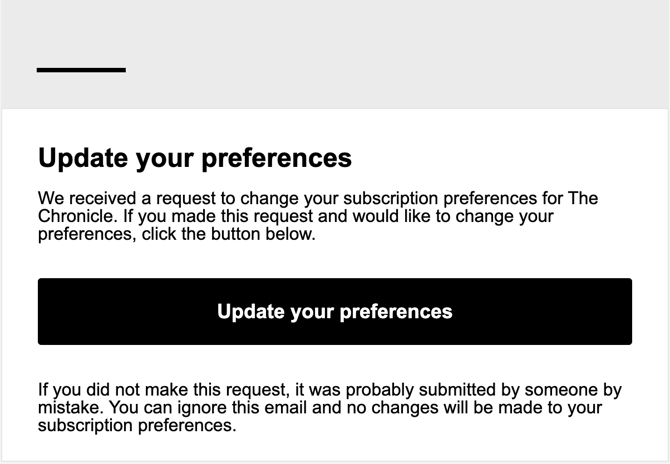
This page can be edited via the 'Email request' page within the 'Subscription center'.
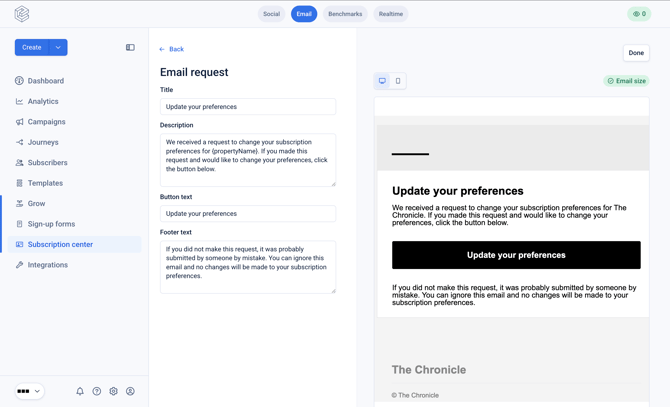
Preferences center page
After clicking the 'Update your preferences' button in the email, the subscriber will be navigated to a Echobox-hosted page displaying their subscription statuses for Campaigns within the Property.
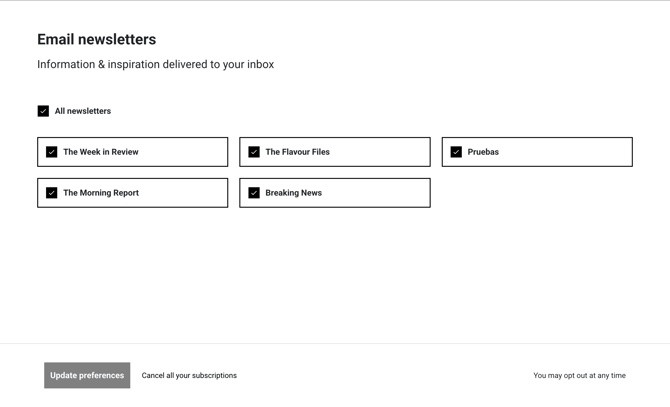
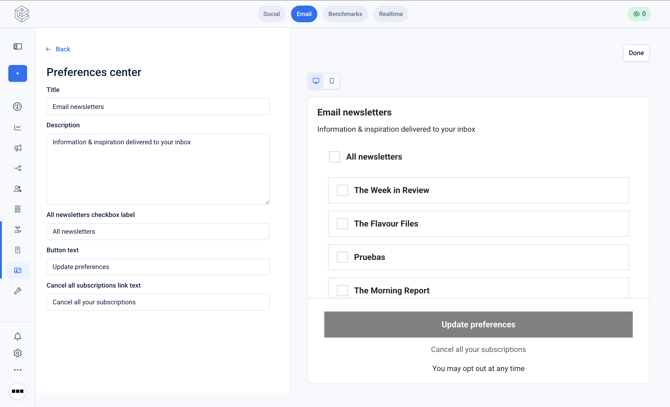
This page can be edited via the 'Preferences center' page in the 'Subscription center'.
Update success page
After making one or multiple changes on the preferences page, the subscriber can update their preferences.
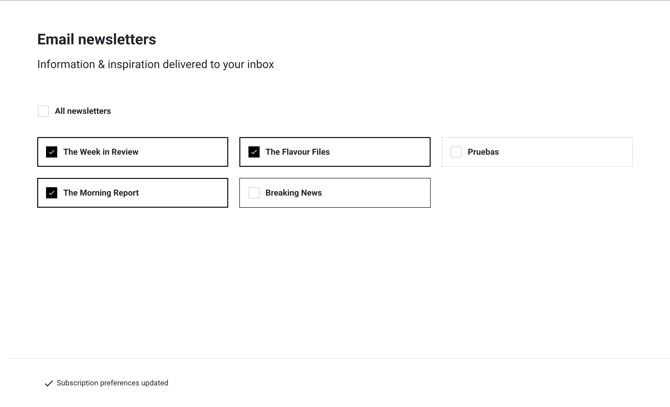
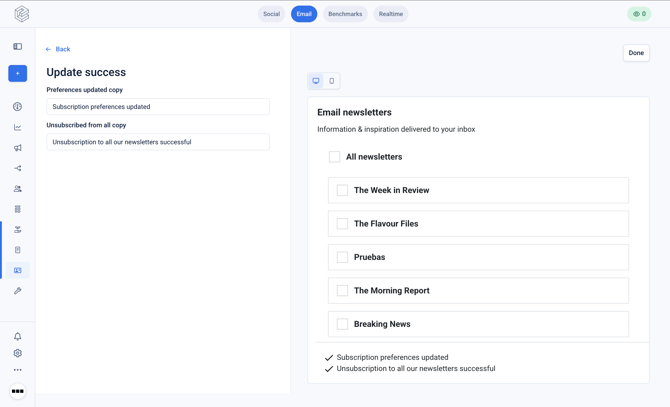
This page, including the success messaging, can be edited via the 'Update success' page.
Privacy policy
You can specify a privacy policy URL and link text and add this to your preferences center pages. This can be configured on the 'Privacy policy' page within the 'Subscription center'.