
Overview
Echobox provides sign-up forms that you can use to register new subscribers to your newsletter campaigns.
Alternatively, you can use a self-managed form or our API, for more details on either option please see:
- Subscribing subscribers via a self-managed form
- Operating on subscriber data
Sign-up forms can be configured per campaign or you can create a multi-campaign sign-up form for numerous campaigns within the property.
Where can I find the sign-up forms?
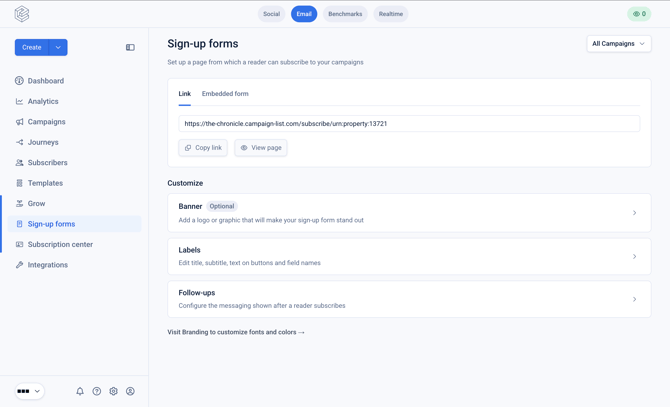
Navigate to the 'Grow' section of the left hand navigation menu.
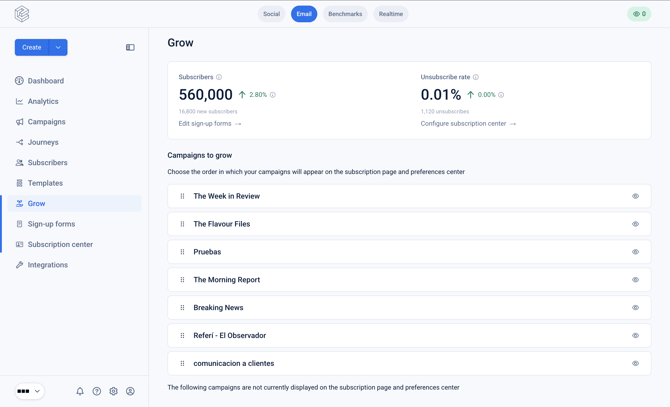
This screen will display some subscriber metrics such as the total subscriber count and unsubscribe rate.
Then click on 'Sign-up forms'.
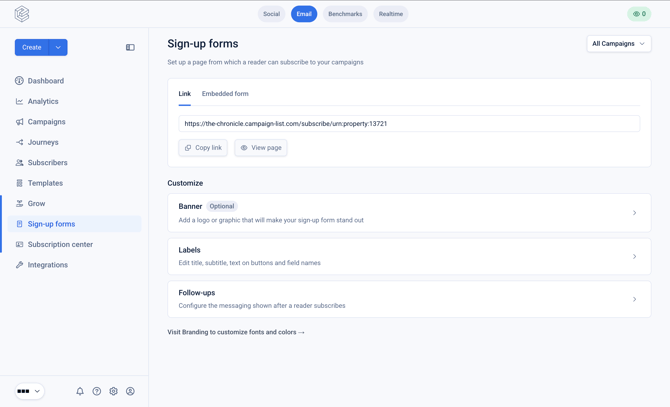
On this page you will be able to see the link to the property-level subscriber form. Alternatively, you can toggle 'All Campaigns' to select a specific Campaign.
How to configure a single-campaign sign-up form
Toggle to a specific campaign using the Campaign toggle in the top-right.
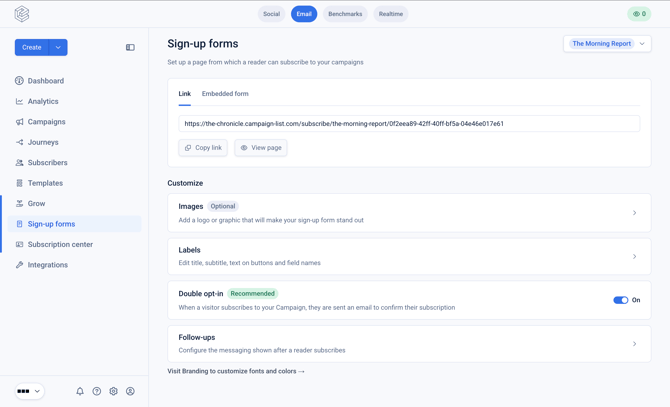
Images
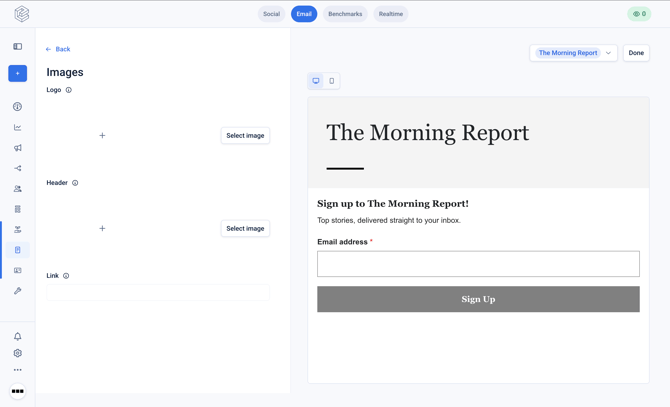
Within the 'Images' page you can configure the Logo and Header image and the Link for the Header Image, that will be used on your sign up form.
On the right hand side, you can see the preview of the sign-up form for the Campaign.
Labels
Within the 'Labels' screen you can configure the text that will be displayed on your single-campaign sign-up form.
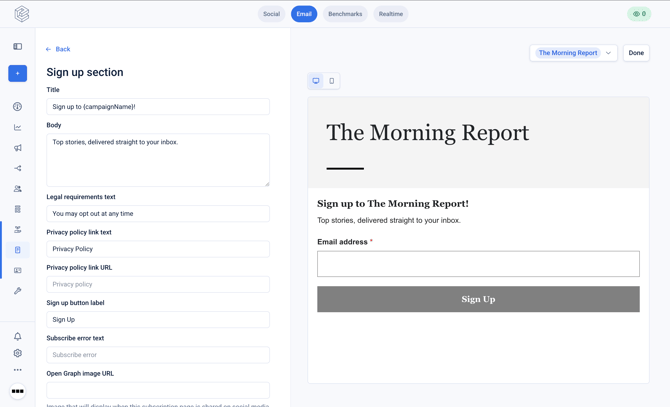
At the bottom of the configuration options on the left-hand side, you can enable the capture of first and last name as optional fields.
Double Opt-in
Double Opt-in is a setting that if enabled requires the subscriber to confirm their intention to subscribe by clicking a CTA in an email that will be sent after they sign-up.
For more details, please see here.
If it is disabled, a 'Confirmation' email will be sent instead of a 'Verification' email. For more details on how to configure 'Confirmation' and 'Verification emails see:
Follow-ups
The 'Follow-ups' section allows you to configure the pages and emails that are displayed or sent to the subscriber after sign-up.
Email: confirmation
The 'Confirmation' email can only be sent if the Double Opt-in setting is disabled.
For more details on how to configure the 'Confirmation' email please see here.
Email: Verification
The 'Verification' email can only be sent if the Double Opt-in setting is enabled.
For more details on how to configure the 'Verification' email please see here.
Subscription page: Verification
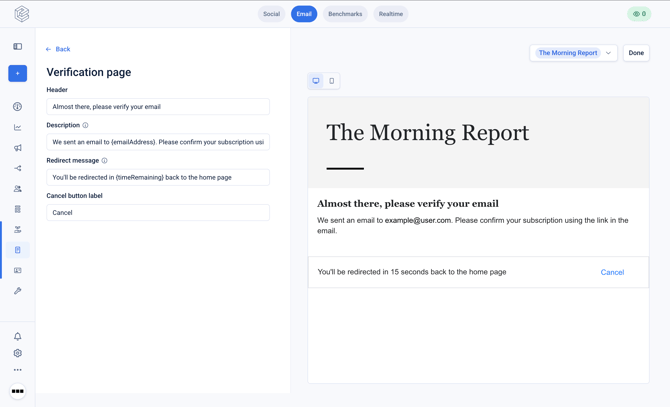
Within the 'Verification' page you can configure the text that will be displayed to the user after they have signed-up, if Double Opt-in is enabled.
The page will use the logo and banner images configured in the previous section.
Subscription page: Success
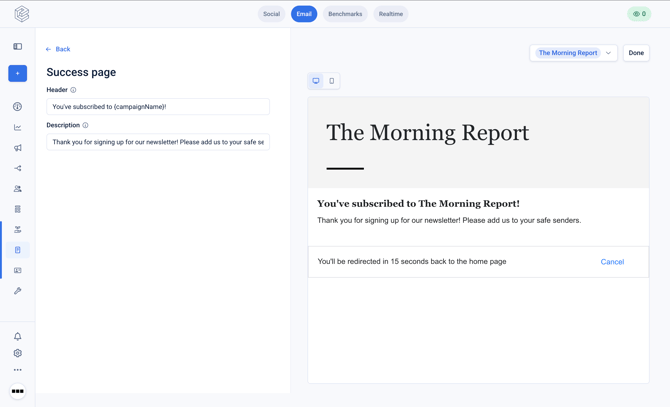
Within the 'Success' page you can configure the text that will be displayed to the user after they have signed-up, if Double Opt-in is disabled.
The page will use the logo and banner images configured in the previous section.
Subscription page: Unsubscribe
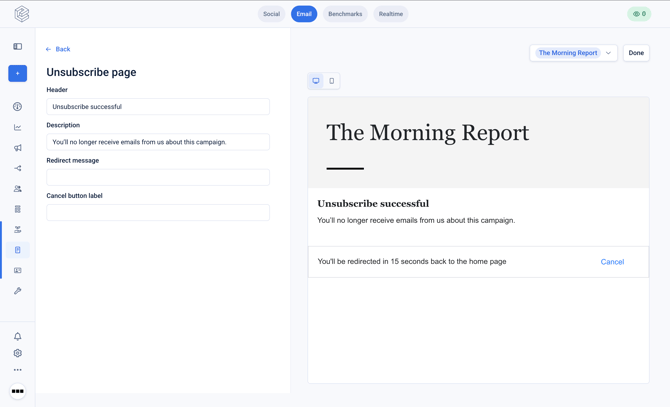
Within the 'Unsubscribe' page you can configure the text that will be displayed to the user after they have unsubscribed.
How can I change the form styling?
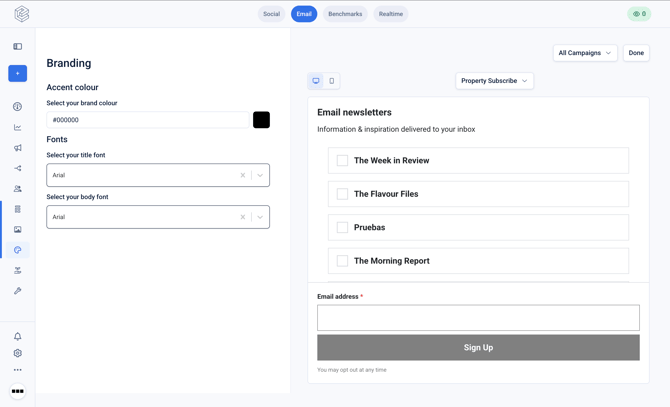
From the 'Sign-up forms' section within 'Grow' in the left hand nav click on 'Visit branding to customize fonts and colors'.
From this page you can select the brand colour and fonts for your sign-up form.
Should I use a Link or Embedded form?
Choose based on where you want the sign-up experience to happen:
- Use a Link if you want users to leave your current page and land on a dedicated sign-up page. This is the simplest option — just point users at the URL, whether in an email, a button, or a text link.
- Use an Embedded Form if you want the sign-up box to appear directly within a page on your own site (e.g. your homepage or a landing page), rather than sending users elsewhere. This uses an iFrame, which renders the form inline while keeping users on your page.