
You can design your own Carousel Templates in Studio and apply them when converting articles into Carousels.
This keeps your branding consistent across every slide and every post.
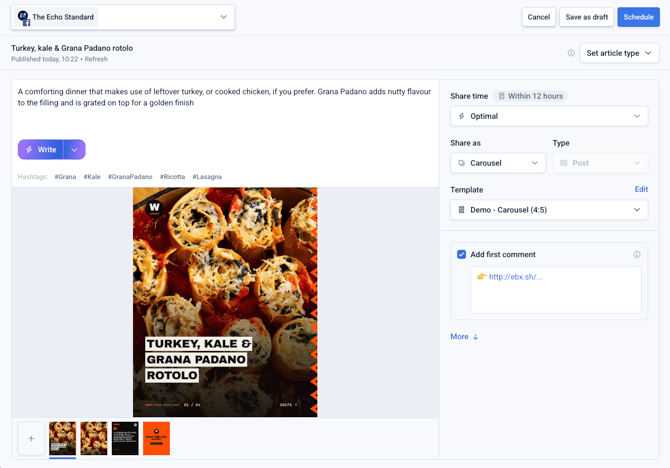
What are Carousel Templates?
A Carousel Template is a branded set of slides that Echobox uses whenever it turns an article into a Carousel.
Each slide starts from one of four bases:
- Title slides
- Image slides
- Quote slides
- Text slides
The base is only a starting point. You can fully customise any slide by adding, removing and arranging elements such as the article image, overlay text, category, image credit or your logo.
You decide how many slides a Template has (between 2 and 20) and what order they appear in.
How do I create a Carousel Template?
Anyone with admin access can create a Carousel Templates in Studio.
- Open Studio, click Create and choose Carousel. Give your Template a name and click Next.
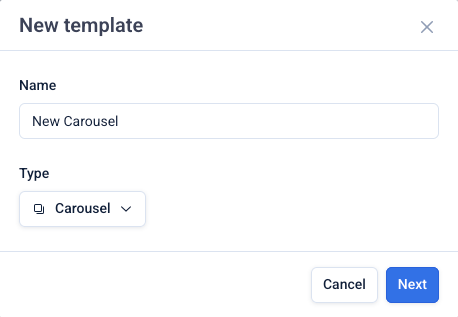
- Set the ratio on the General tab, and your fonts and colours on the Styling tab. For finer control over layout, you can add custom CSS for each slide on the CSS tab.
- Set up your Template using the sidebar:
- General: choose the ratio for your slides
- Message: set the text that goes with your post, including any prefix, suffix and where the link appears
- Elements: build and customise your slides (see below)
- Styling: choose your fonts and colours
- CSS: for finer control over layout, add custom CSS for each slide
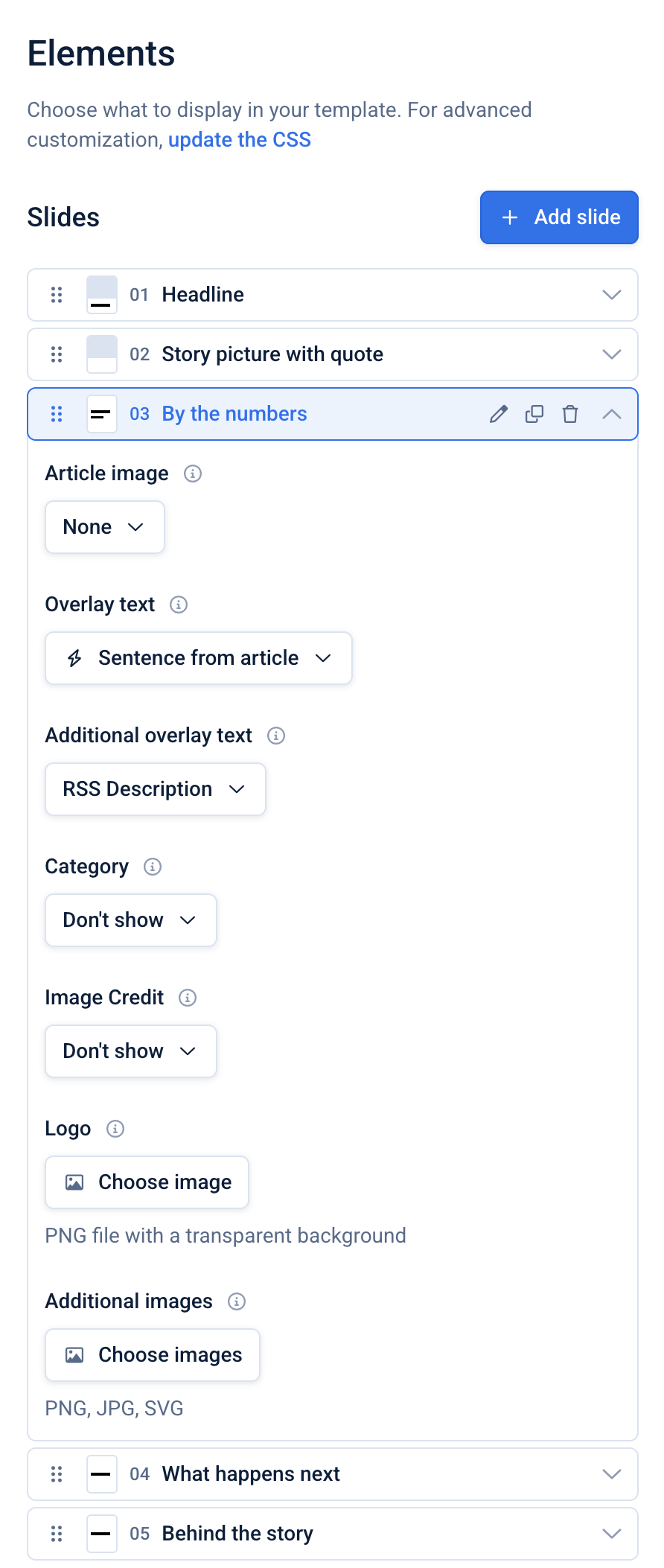
- To add more slides, click Add slide. You can also duplicate, remove or drag slides to reorder them.
- Click Save changes.
Slides can show categories, extra text fields and image credits from your RSS feed. Find out more in Adding dynamic content to image styles via RSS.
There's no limit on the number of Carousel Templates per account or per Page.
What can I do with Carousel Templates?
- Apply a Template when converting an article into a Carousel
- Regenerate all Carousel slides with a different Template
- Edit any slide's text, quote or image for an individual post
- Add new slides that automatically match the active Template
- Set a default Carousel Template for a specific Page
Applying a Template to a Carousel
While creating or editing a Carousel:
- Open the Compose Box with an article.
- Convert the article to a Carousel.
- Choose a Carousel Template from the Template dropdown
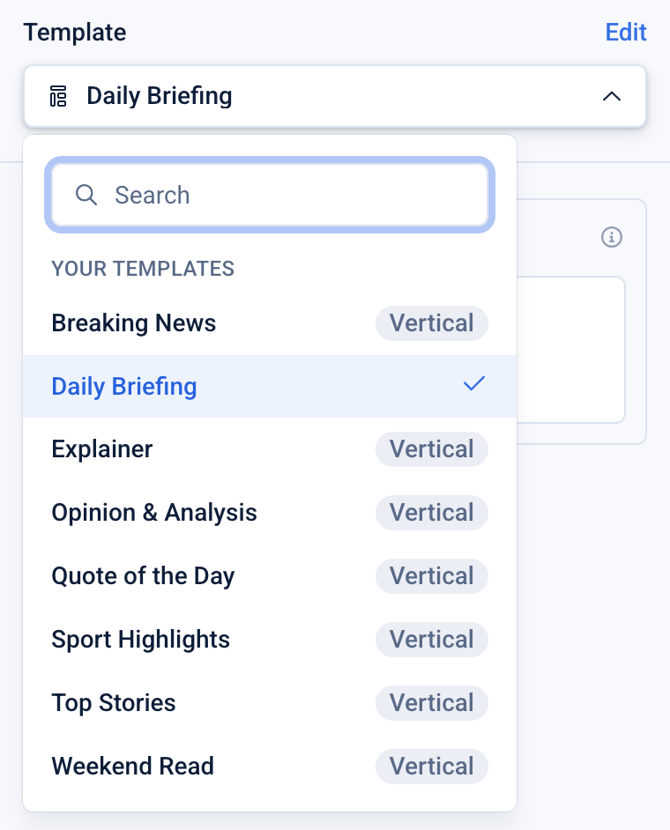
- Select one of your Carousel Templates.
Your slides are generated from the selected template. If you want to customise your slides for current post in the Compose Box, select it and click edit to change its text, then click Update. To swap a slide's image, choose a new one and it's applied straight away.
Adding new slides
Click Add to Carousel and choose one of your Template's slides. It's added using that slide's design, so there's no need to restyle it. Fill in the details and click Add.
Setting a default Carousel Template for a Page
You can set a default Carousel Template for any Page on a network that supports Carousels.
- Go to Settings → Pages and open the Page
- Open Templates
- Find Carousel under Post
- Choose your Carousel Template from the dropdown
- Click Save changes.
This Template is automatically selected when you create a post in the Compose Box, and for automated Carousel posts for that Page.