
Overview
Echobox Email allows you to fully automate your newsletter workflow end to end, from the selection of content to the sending of your newsletter.
Why this matters
- Automating your newsletter campaigns frees you from the repetitive work of assembling and scheduling each Edition manually, so you can focus on what matters most
- Echobox can handle the full pipeline on your behalf: selecting articles, ordering them for maximum engagement, and sending at the optimal time for your subscribers
- For resource-constrained teams or frequent senders, automation removes the operational risk of missed sends or inconsistent scheduling. Your subscribers receive a reliable, well-timed newsletter without requiring manual input every time
How do I know if automation is enabled for a campaign?
You can determine if automation is enabled for your campaign by toggling to the specific campaign on the dashboard.
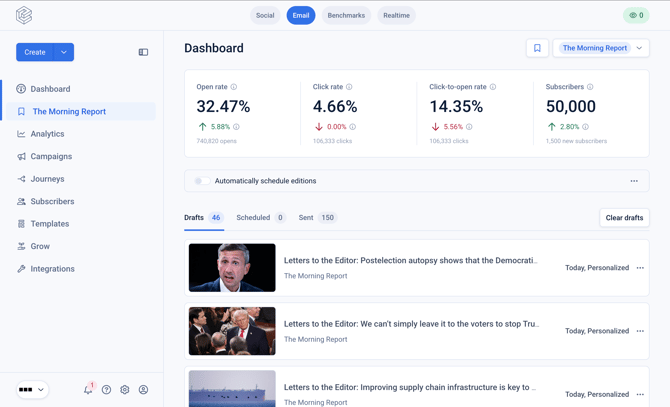
We can see here that automation is not currently enabled for the The Morning Report campaign.
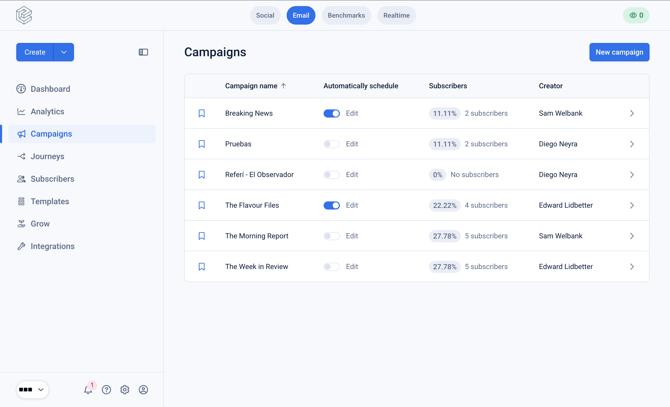
This can also be checked by navigating to 'Campaigns' in the left hand nav.
How to configure automation for a campaign
Click on the 3-dot menu to the right of 'Automatically schedule editions' on the campaign dashboard, and then select 'Automation settings'.
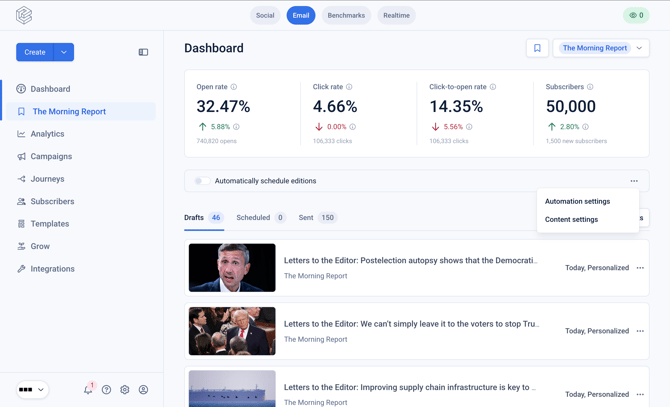
Alternatively, navigate to the campaigns settings by clicking 'Campaigns' in the left hand nav, and then select 'Automation'.
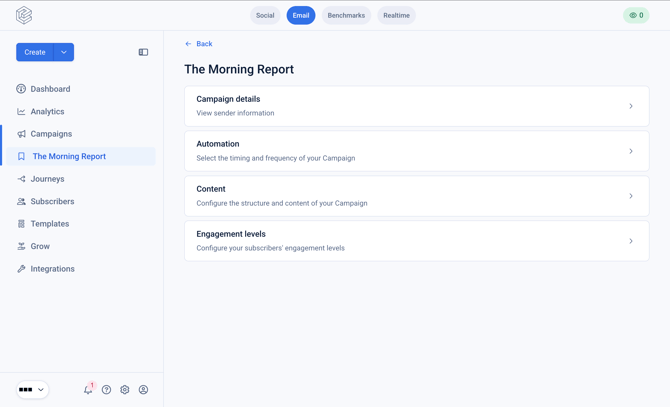
On the automation page you will have a number of settings available:
- If automation is enabled or disabled
- The frequency with which Editions should be created and sent
- The send time for the edition, including personalized send time options
- The default segment or segments that the edition should send to
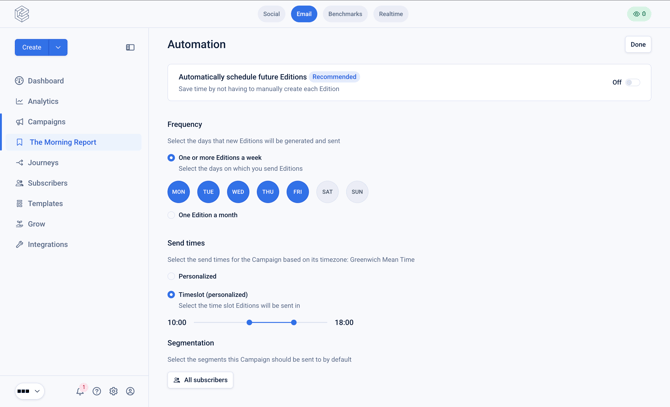
Selecting your send frequency
An Edition can be sent on multiple days of the week, by selecting more than one day. For example, it’s common for a daily Edition to be sent Monday to Friday, but not on the weekend. You can also set your Campaign to send once a month on a specific date.
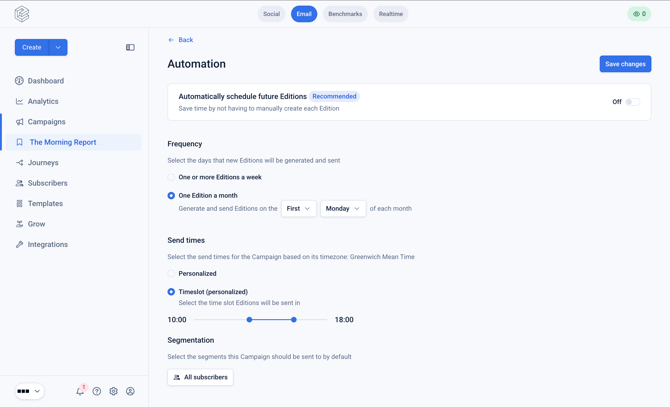
Choosing your send time
When creating and sending Editions with automation enabled, your Edition will be created one hour before the time slot. The following automated send time settings are available.
Personalized
Echobox will create the Edition and 04:00am, and start sending it at 05:00am. Echobox will personalise the send times per recipient, throughout the whole day, in accordance with the last recorded open of each recipient.
Timeslot (personalized)
Echobox will create the Edition one hour before the time slot and start sending it at the beginning of the time slot. Echobox will personalise the send times per recipient with the specified time slot, in accordance with the last recorded open of each recipient.
If the last recorded open of the recipient is before the time slot, the recipient will be sent the edition at the beginning of the time slot. Equally, if the last recorded open of the recipient is after the time slot, the recipient will be sent the edition at the end of the time slot.
Specific time
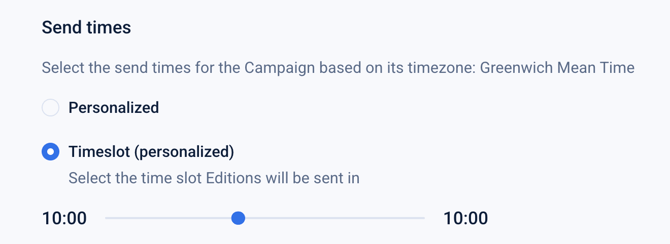
If you wish to automate the sending of Editions at a specific time, simply configure the time slot to be one hour, as shown below.
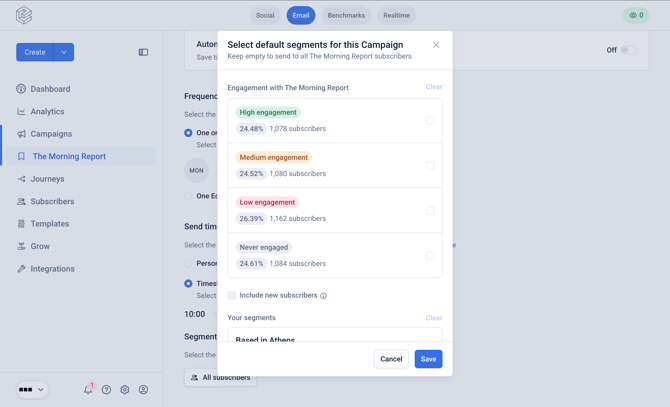
Selecting your segments
If you do not wish to send to the full campaign subscriber list you can select default segments that will be automatically sent to. To do so, click on 'All subscribers' and select one or more segments from the modal.
Frequently asked questions
What template will it use?
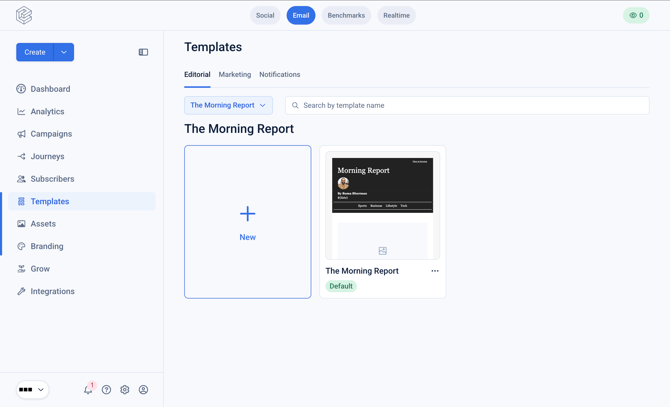
Within the 'Templates' area of Echobox, accessible via the left hand nav, a default template must be selected for every campaign. This instructs Echobox which template and content settings to use to populate the Edition.
Can I make edits to the Edition before it is sent?
Yes. The draft Edition will be created one hour before the time slot, allowing you time to review and edit the draft Edition before it is sent.
How does this flow work end to end?
- The Edition will be created one hour before the time slot using the default template for the campaign. It will be present in your 'Draft' tab on the campaign dashboard
- At the start of the time slot it will move to the 'Scheduled' tab on the campaign dashboard and begin sending
- Once sending has completed it will move to the 'Sent' tab
- This will repeat in accordance with your frequency setttings
Can I still manually create and send Editions if automation is enabled?
Yes, you can still manually create and send Editions while they have Echobox set to automatically create Editions. However, there is some behaviour that should be considered when doing this.
If a manual Edition is scheduled to be sent after an automatic Edition has finished sending on the same day, then it will go out as normal, but will not contain any of the same articles as the previous automatic Edition (unless they are manually added by the user).
If a manual Edition is scheduled to be sent before an automatic Edition has started sending on the same day, then the automatic Edition will be created and sent as normal (again, without any of the same articles in the manual Edition). However, if the manual Edition is scheduled to be sent within the exact same time period as the automatic one would be, then the automatic Edition will not be created for that day. This is to avoid sending subscribers two emails in quick succession.