
Overview
Most newsletter teams involve more than one person, each requiring different levels of access. Adding a team member sends them an invitation email allowing them to create their own login with their assigned role.
Why this matters
- Assigning the correct role to each team member limits the chance of unintended changes to settings or subscriber data.
- You can remove access immediately when a team member leaves, keeping your account secure.
User roles
There are two user roles within Echobox Email:
- Admin roles can access all campaigns within the property and can add and remove users
- Editor roles only gain access to the campaigns specified by the admin and cannot and or remove users
How to add a team member
1. Click on the settings icon in the bottom left of the screen
2. Click on 'Team' in the left side bar
3. Click 'Add user' and enter a name, email address and then select their role and the campaigns they can access
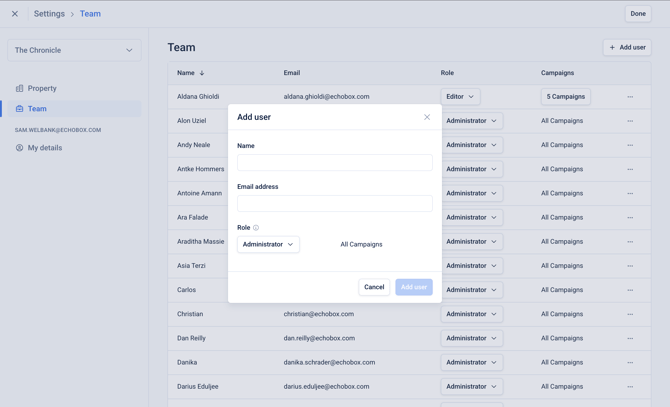
The invited person will receive an email with a link to set up their account. They must accept the invitation before they can log in.
How to remove a team member
1. Navigate to the 'Team' page in property settings
2. Click on the 3-dot menu for the specific user and click 'Remove user'
3. Confirm that you wish to remove the user
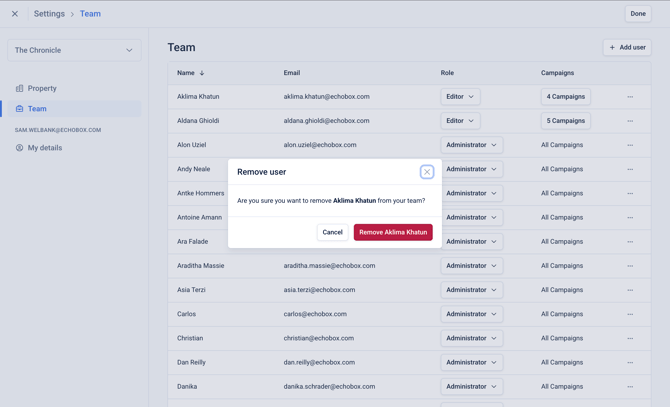
The user selected will be immediately removed from the property.